Why Is My Webcam Lagging?
So, you're asking, "Why is my webcam lagging?" It’s a super common and annoying problem that can disrupt everything from work meetings to chats with family. That choppy, stuttering video feed can make you feel disconnected and unprofessional.
Don't let a laggy webcam get you down. Our research shows that pinpointing the cause often comes down to checking a few key areas, usually related to your internet, your computer's performance, or the software running your camera. We'll walk you through the most likely suspects and how to fix them.
Why Is My Webcam Lagging?
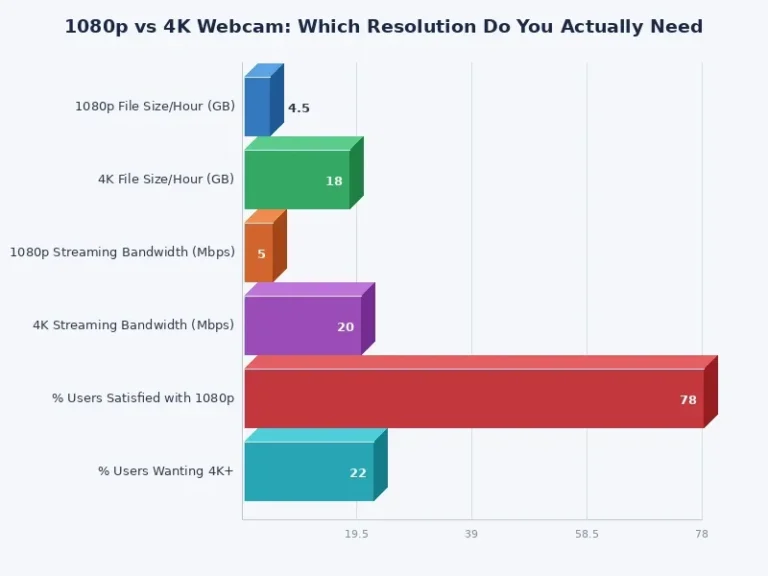
When your webcam's video feed is lagging, it means the data isn't getting to your screen fast enough. This delay is typically caused by a bottleneck in your internet connection, your computer's processing power, or the software that manages your webcam. As of 2026, minimum recommended upload speeds for reliable HD video calls are around 5 Mbps, but other factors can easily cause lag even if you meet this.
Your Webcam's Video is Choppy: The Common Culprits
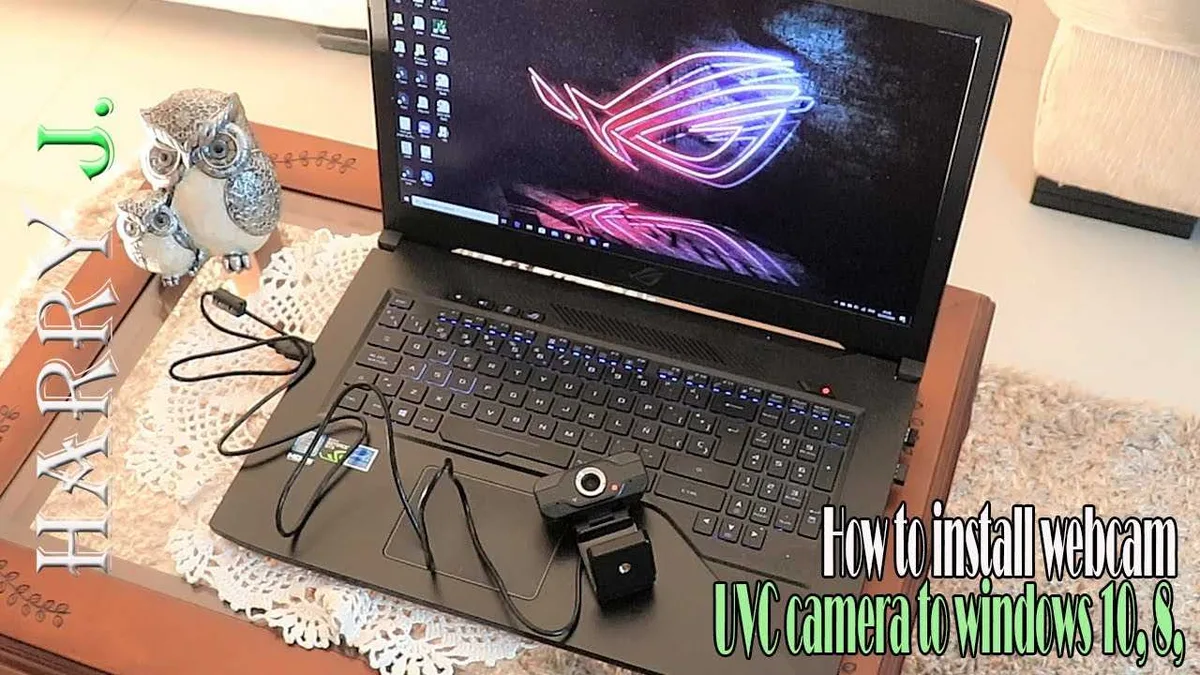
Image source: Bing (Web (fair-use with source credit))
When your webcam starts lagging, it’s usually not one single, complex issue. More often, it's one of a few common problems that are relatively easy to spot and fix. We'll break down the most frequent offenders to help you identify what’s slowing you down.
Internet Connection Glitches
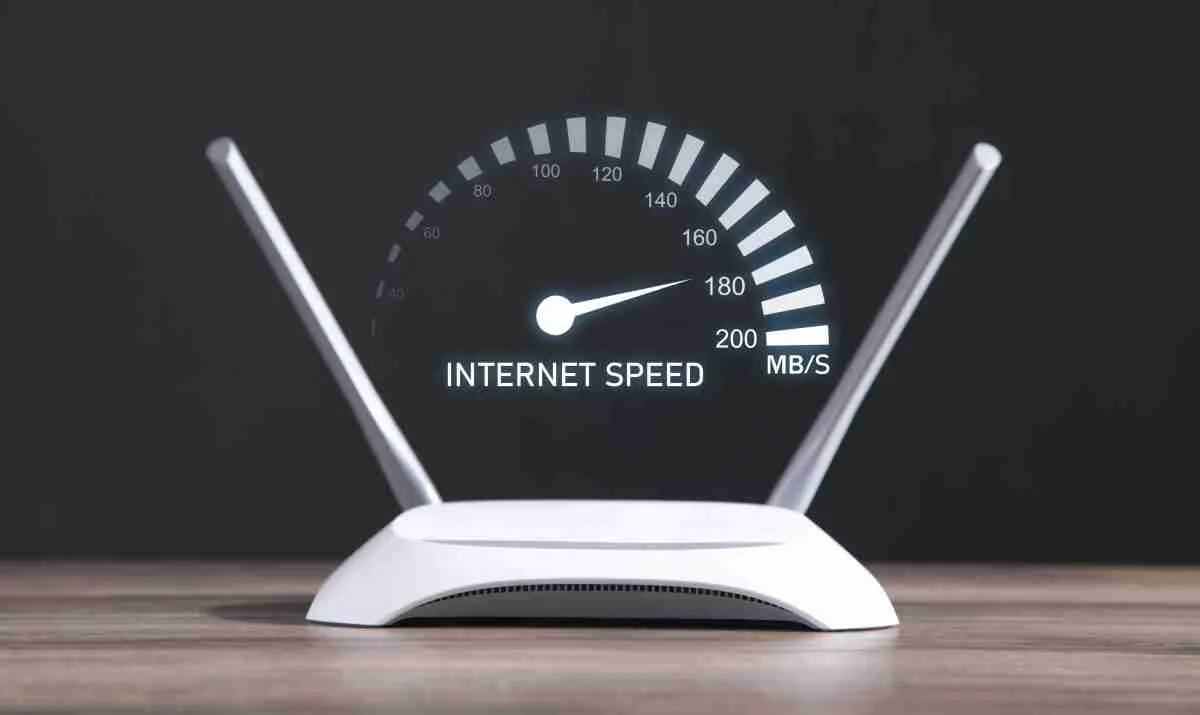
Image source: Web (Bing) / tufftechies.com (Web image (fair-use with source credit))
This is by far the most common reason for a lagging webcam. Your video signal travels through your internet connection, and if that connection isn't robust enough, the video will stutter and freeze.
- Wi-Fi Woes: If you're using Wi-Fi, your signal strength can fluctuate. Walls, distance from the router, and interference from other devices (like microwaves or Bluetooth speakers) can all weaken your connection. If you're experiencing lag, try moving closer to your router.
- Network Hogging: Think about what else is using your internet. If someone else in your household is streaming 4K video, downloading large files, or gaming online, they’re consuming bandwidth that your webcam needs.
- ISP Throughput: Sometimes, the problem lies with your Internet Service Provider (ISP). Your plan might not be delivering the speeds you're paying for, or there might be local network congestion affecting your service. You can test your connection speed using various online tools. Per a report from the National Institute of Standards and Technology (NIST), consistent upload speed is critical for real-time video communication.
Computer Overload: Too Much Work
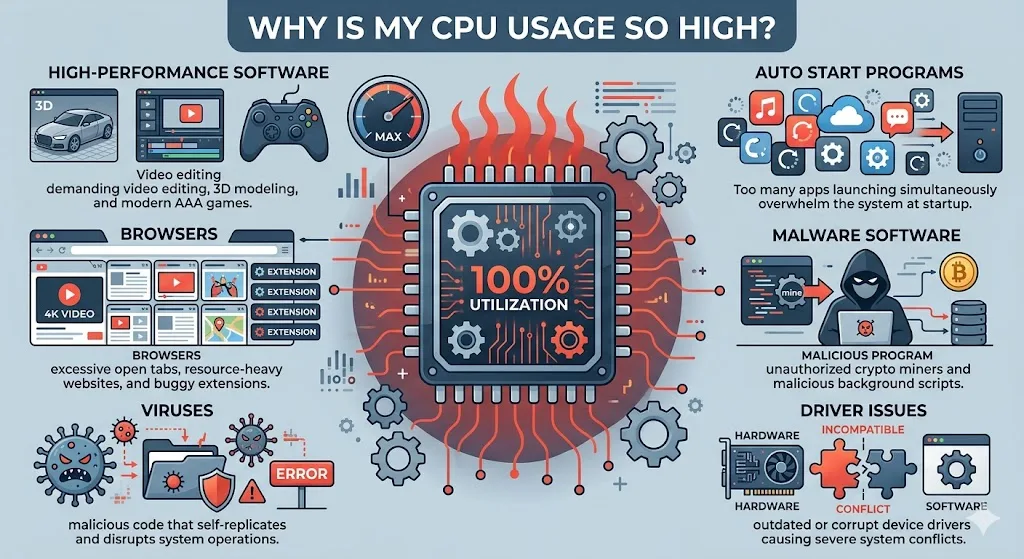
Image source: Bing (Web (fair-use with source credit))
Your computer has to process a lot of information to run your webcam, encode the video, and send it out over your network. If your computer is struggling under the load, your webcam performance will suffer.
- Too Many Apps Open: Each program you run on your computer uses processing power (CPU) and memory (RAM). Having numerous applications open simultaneously, especially resource-intensive ones like web browsers with many tabs, video editing software, or games, can overwhelm your system. This leaves less power for your webcam and video conferencing software.
- Background Processes: Even apps you aren't actively using can run processes in the background. Antivirus scans, automatic updates, or cloud syncing services can all silently consume your computer's resources.
- Insufficient Hardware: Older computers or those with less powerful processors and limited RAM may simply not be equipped to handle the demands of modern video conferencing, especially if you're trying to multitask.
Software & Driver Snafus
When your webcam lags, the issue might not be with your hardware or internet, but with the invisible code that makes it all work. Software glitches and outdated drivers are frequent, yet often overlooked, causes of lag.
- Why Drivers Matter: Think of drivers as translators. They ensure your operating system and webcam communicate effectively. When drivers are old, this translation can become slow or inaccurate, leading to lag. Manufacturer specifications often recommend driver updates for optimal performance.
- How to Update Drivers:
- Identify your webcam: Note the make and model of your webcam.
- Visit the manufacturer's website: Go to the support or downloads section of your webcam manufacturer's official website.
- Download the latest drivers: Find and download the most recent driver software for your specific webcam model and operating system.
- Install the drivers: Follow the on-screen instructions to install the new drivers. You might need to restart your computer afterward.
- Reinstall Drivers: If updating doesn't help, sometimes completely uninstalling and then reinstalling the drivers can fix corruption issues. You can usually do this through your operating system's device manager.
Quick Checks: The First Things to Try
Before diving into more technical solutions, let's try some quick fixes. These are often the easiest and fastest ways to resolve webcam lag, and they address the most common causes.
- Restart Your Computer: This is the classic IT solution for a reason. Restarting your computer closes all running programs and processes, clears out temporary files, and can resolve many software glitches that might be causing lag.
- Restart Your Router: Your internet router also benefits from a refresh. Unplugging it for about 30 seconds and then plugging it back in can clear out temporary network issues and re-establish a stable connection.
- Close Unnecessary Applications: Go through your open programs and close anything you aren't actively using. This frees up your computer's processing power and memory (RAM) for your webcam and video call. Pay attention to browser tabs, as they can consume a surprising amount of resources.
Testing Your Internet Speed and Stability
A weak or unstable internet connection is a primary cause of laggy webcam feeds. Knowing your actual connection speeds helps determine if your internet is the bottleneck.
- Run a Speed Test: Use a reliable online speed test tool. You're looking for both download and upload speeds. For HD video calls, a consistent upload speed of at least 5 Mbps is generally recommended, though more is always better.
- Check for Packet Loss: Some speed tests also report packet loss. Packet loss occurs when data packets fail to reach their destination, which severely impacts real-time applications like video calls. Consistent packet loss indicates a serious connection problem. Per a report from the National Institute of Standards and Technology (NIST), packet loss above 1% can significantly degrade video quality.
- Test Wired vs. Wireless: If you're on Wi-Fi, try connecting your computer directly to your router with an Ethernet cable. This bypasses potential Wi-Fi interference and can reveal if your wireless connection is the weak link. You'll often see a more stable and faster connection.
If your internet speed test results are consistently low, or if you experience significant packet loss, it's time to contact your ISP. They can help diagnose issues with their service or equipment that might be impacting your connection. Sometimes, simply repositioning your router or upgrading to a mesh Wi-Fi system can also improve signal strength throughout your home.
Freeing Up Your Computer's Resources
When your computer is bogged down, your webcam can't get the attention it needs to function smoothly. Freeing up its processing power and memory is crucial.
- Close Unnecessary Programs: Seriously, shut down anything you're not actively using for your call. This includes browser tabs (especially those with auto-playing videos or ads), email clients, music players, and any background applications. Each one consumes CPU cycles and RAM.
- Check Task Manager (or Activity Monitor): On Windows, press
Ctrl+Shift+Escto open Task Manager. On macOS, open Activity Monitor. Look for applications or processes using a high percentage of CPU or RAM. If you see something unexpected hogging resources, you can end the task, but be cautious not to close essential system processes. - Limit Startup Programs: Many applications automatically launch when you turn on your computer. You can usually manage these startup programs in your system settings. Reducing the number of apps that launch at startup means your computer starts faster and has more resources available from the get-go.
- Scan for Malware: Viruses and other malware can run in the background, consuming significant system resources. Running a full system scan with reputable antivirus software is a good habit and can help identify and remove anything that might be slowing down your computer.
Updating and Managing Webcam Drivers
The software that allows your computer to talk to your webcam, known as drivers, plays a vital role in its performance. Outdated or corrupt drivers are a frequent cause of lag.
- Why Drivers Matter: Think of drivers as translators. They ensure your operating system and webcam communicate effectively. When drivers are old, this translation can become slow or inaccurate, leading to lag. Manufacturer specifications often recommend driver updates for optimal performance.
- How to Update Drivers:
- Identify your webcam: Note the make and model of your webcam.
- Visit the manufacturer's website: Go to the support or downloads section of your webcam manufacturer's official website.
- Download the latest drivers: Find and download the most recent driver software for your specific webcam model and operating system.
- Install the drivers: Follow the on-screen instructions to install the new drivers. You might need to restart your computer afterward.
- Reinstall Drivers: If updating doesn't help, sometimes completely uninstalling and then reinstalling the drivers can fix corruption issues. You can usually do this through your operating system's device manager.
When to Suspect Your Webcam Hardware
If you’ve checked your internet, freed up your computer’s resources, and updated your drivers, but your webcam is still lagging, it might be time to consider the hardware itself. While less common than software or network issues, a failing webcam or a faulty connection can cause performance problems.
- Physical Damage: Inspect the webcam and its cable for any visible signs of damage, such as kinks, cuts, or bent connectors. A damaged cable can interrupt the data flow, causing lag or complete failure.
- Overheating: Some webcams can get quite warm during prolonged use. If the webcam feels unusually hot to the touch, it might be overheating and throttling its performance. Let it cool down for a while and see if performance improves.
- USB Port Issues: If you're using an external USB webcam, try plugging it into a different USB port on your computer. A specific port might be damaged, or it might not be providing enough power. It’s also a good idea to try ports that are directly on your computer’s motherboard (usually on the back of a desktop) rather than those on a hub or front panel, as these can sometimes have power or bandwidth limitations.
Common Webcam Lag Mistakes to Avoid
Even with the best intentions, it's easy to fall into traps that can worsen webcam lag or prevent you from fixing it. Being aware of these common pitfalls can save you a lot of frustration.
- Ignoring Your Internet Upload Speed: Many people focus only on download speed, but for video calls, upload speed is critical. If your upload speed is too low, your video won't be able to transmit smoothly, no matter how fast your download is.
- Not Closing Background Programs: Simply minimizing windows doesn't close the programs. They continue to run in the background, consuming valuable CPU and RAM. Always actively close applications you aren't using.
- Skipping Driver Updates: Relying on your operating system to automatically update all drivers can be risky. Webcam manufacturers often release specific driver updates that improve performance or fix bugs. Regularly checking their official websites is key.
- Blaming the Wrong Component: Jumping to conclusions without systematic troubleshooting can waste time. Always start with the simplest and most common causes (internet, software) before assuming a hardware failure.
- Using a Poorly Ventilated Setup: If your computer or webcam is overheating due to blocked vents or an enclosed space, its performance will suffer. Ensure adequate airflow around all your devices.
Frequently Asked Questions About Laggy Webcams
Why does my webcam lag only during certain video calls?
This often points to an issue with the specific video call application you're using. It might be outdated, have a temporary glitch, or be experiencing server-side issues. Try updating the app, clearing its cache, or testing with a different application to see if the problem persists.
Can my webcam's resolution settings affect lag?
Yes, absolutely. If your webcam is set to a very high resolution (like 4K) and your internet or computer can't handle that data rate, it will cause lag. Lowering the resolution in your webcam's software settings can often significantly reduce lag.
How much upload speed do I really need for smooth video?
For reliable HD video conferencing, aim for at least 5 Mbps of upload speed. However, if multiple people are using the internet simultaneously or if you're sending higher-resolution video, you'll need more. Some advanced video applications may recommend 10 Mbps or higher for optimal quality.
Is a wireless webcam more prone to lagging than a wired one?
Generally, yes. Wireless connections, like Wi-Fi, are inherently more susceptible to interference and signal degradation than a direct wired USB connection. While modern wireless technologies are good, a wired connection typically offers more consistent performance.
However, if you have a very strong and stable Wi-Fi signal, a high-quality wireless webcam can perform comparably well. The key is the quality and stability of the wireless signal itself.