How to Fix a Webcam That Is Not Working?
When your webcam suddenly stops showing you on screen, it's a frustrating interruption, especially when you're in the middle of an important video call or trying to connect with loved ones. Fortunately, most webcam issues can be resolved with a systematic approach, starting with the simplest checks. We’ll walk you through the common causes and solutions so you can get back online quickly.
Many external webcams boast resolutions like 1080p Full HD, adhering to standards that ensure a clear picture for professional or personal use. However, even with these high specifications, software glitches, driver problems, or simple connection issues can prevent them from functioning correctly. Understanding the typical troubleshooting steps is key to diagnosing and fixing these problems.
Webcam Not Working? Let's Figure It Out.
If your webcam suddenly isn't detected or isn't showing any video, don't panic. Usually, the problem isn't a broken camera but a simple software or connection snag. We’ll tackle the most common issues first.
Often, checking the physical connection, ensuring drivers are up to date, or granting app permissions solves the problem.
Is Your Webcam Actually Connected? Checking the Basics
Before diving into software fixes, let's ensure the hardware is correctly set up. This might sound obvious, but many issues stem from simple connection problems.
Physical Connection & USB Port Check
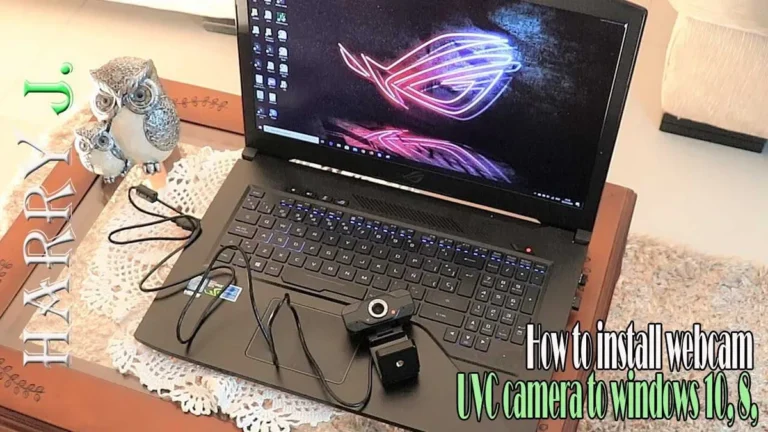
First, physically disconnect your webcam from the computer. If it's a USB webcam, try plugging it into a different USB port. Sometimes, a specific port can have issues, or if you're using a USB hub, try connecting the webcam directly to the computer.
For laptops, using the ports on the sides or back is usually best.
Is the Webcam Powered On (If Applicable)?
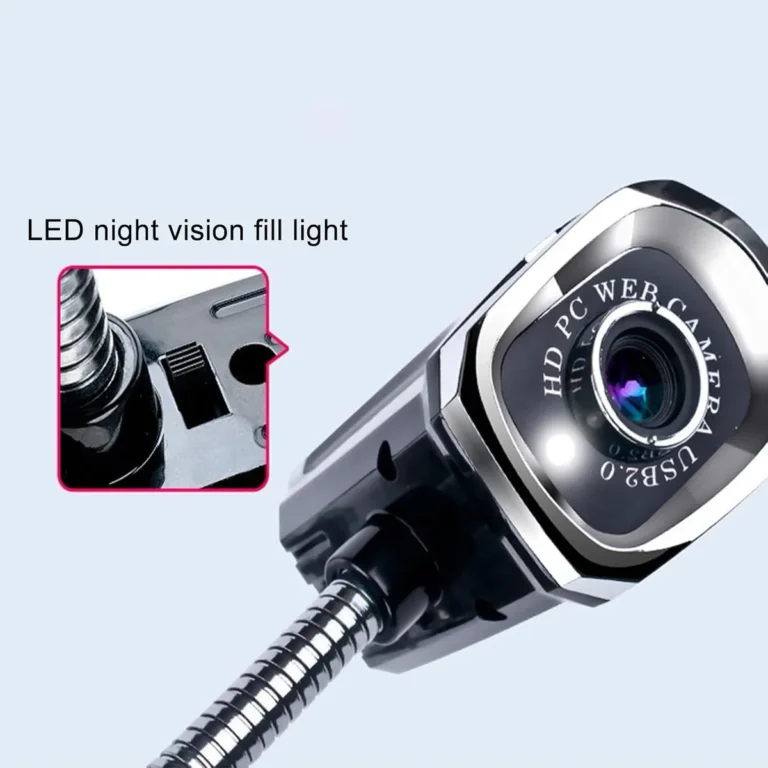
Some higher-end webcams have their own power adapters or require a specific USB power delivery. Double-check that your webcam is receiving power, often indicated by a small LED light. If your webcam has a physical on/off switch, make sure it's in the "on" position.
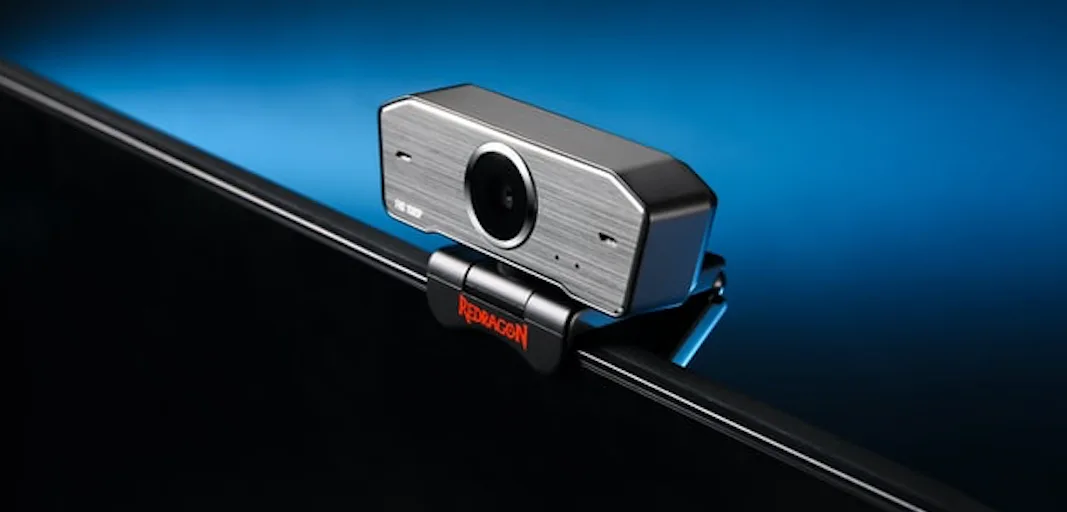
Image source: Web (Bing) / fineshare.com (Web image (fair-use with source credit))
Driver Troubles: The Most Common Culprit
Drivers are small software programs that allow your operating system to communicate with your webcam hardware. If these drivers are outdated, corrupted, or missing, your computer won't recognize the webcam. This is a very frequent cause of webcams not working.
What Are Drivers and Why Do They Matter?
Think of drivers as translators. Your operating system (like Windows or macOS) speaks one language, and your webcam speaks another. The driver translates between them, telling the OS how to send commands to the webcam and how to receive video and audio data back.
Without the correct driver, the communication breaks down, and the webcam simply won't work. Manufacturer specifications often list the required driver version for optimal performance.
Checking for Driver Updates
Outdated drivers are a common reason for hardware malfunctions.
- For Windows users:
- Press the
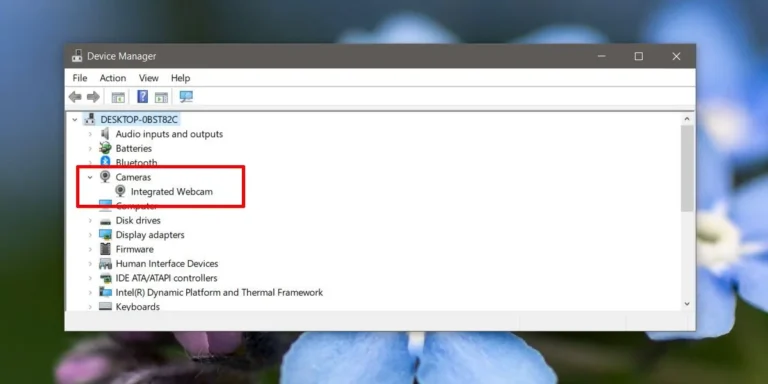
Windows key + Xand select "Device Manager." - Look for "Cameras" or "Imaging devices" in the list and expand it.
- Right-click on your webcam and select "Update driver."
- Choose "Search automatically for drivers." Windows will try to find and install the latest version. If it can't find one, you might need to download it from the manufacturer's website.
- Press the
- For macOS users:
- macOS generally handles driver updates automatically through system updates. Ensure your macOS is up to date by going to
Apple menu > System Settings > General > Software Update.
- macOS generally handles driver updates automatically through system updates. Ensure your macOS is up to date by going to
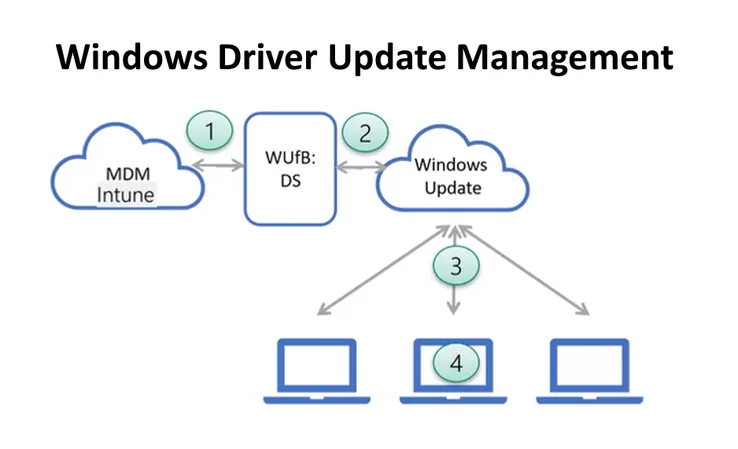
Image source: Web (Bing) / learn.microsoft.com (Web image (fair-use with source credit))
Reinstalling Your Webcam Driver
If updating doesn't help, or if you suspect the driver is corrupted, reinstalling it can often fix the problem.
- In Windows Device Manager, right-click your webcam and select "Uninstall device."
- Check the box that says "Attempt to remove the driver for this device" if it appears.
- Click "Uninstall."
- Disconnect and then reconnect your webcam. Windows should attempt to reinstall the driver automatically. If not, you'll need to go to the webcam manufacturer's support website, download the latest driver for your specific model and operating system, and install it manually.
Software Conflicts & Permissions: Apps Stealing the Show
Sometimes, the issue isn't with the webcam hardware or its drivers but with how applications are accessing it. Multiple apps might try to use the webcam simultaneously, or a specific application might not have the necessary permissions. This is especially common with video conferencing software.
Which App is Using Your Webcam?
If you've recently used your webcam in one app, another app might be holding onto the connection. Close any applications that might be using the webcam, including video conferencing tools like Zoom, Microsoft Teams, or Skype, as well as browser tabs that might have camera access enabled. Restarting your computer is a quick way to clear any lingering app processes.
Granting Permissions to Apps (Windows & macOS)
Modern operating systems have privacy controls that require you to explicitly grant applications permission to access your webcam. If an app can't see your camera, it's likely missing this permission.
- On Windows 10 and 11:
- Go to
Settings > Privacy & security > Camera. - Ensure "Camera access" is turned on.
- Scroll down to "Let apps access your camera" and make sure it's toggled on.
- Further down, find the specific application you're trying to use and ensure its toggle is also on.
- Go to
- On macOS:
- Go to
Apple menu > System Settings > Privacy & Security > Camera. - You’ll see a list of applications that have requested camera access. Toggle the switch next to the app you need to grant it permission. If the app isn't listed, you may need to try opening it again to prompt the permission request.
- Go to
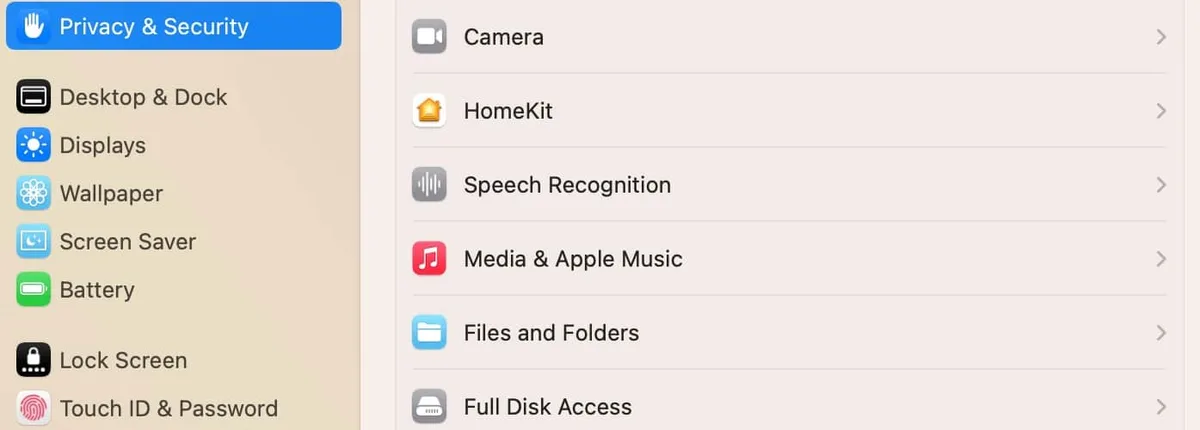
Image source: Bing (Web (fair-use with source credit))
Testing Your Webcam in Different Applications
To determine if the problem lies with a specific app or the webcam system-wide, test it in several places.
- Try the built-in Camera app on Windows.
- Use Photo Booth or QuickTime Player on macOS.
- Visit a simple online webcam test website.
If the webcam works in one application but not another, the issue is almost certainly with the settings or permissions of the problematic app. If it doesn’t work in any application, the problem is likely deeper, involving drivers or hardware.
Your Operating System Settings: A Hidden Hurdle
Beyond app permissions, your operating system has its own settings that can affect webcam functionality. These are often overlooked but are crucial for proper operation.
Windows: Device Manager and Camera Settings
In Windows, the Device Manager is your go-to for hardware status. If your webcam isn't listed under "Cameras" or "Imaging devices," or if it has a yellow exclamation mark next to it, there's a driver or hardware issue. You can also check the main Camera settings by going to Settings > Apps > Camera.
Here, you can ensure the correct camera is selected as the default and verify that apps have permission to use it.
macOS: System Preferences and Privacy Settings
On macOS, the Privacy & Security section within System Settings is paramount. As mentioned, it controls app access. Additionally, sometimes older webcams might not be fully compatible with newer macOS versions.
Checking for a manufacturer’s compatibility statement or a driver update for your specific macOS version is a good idea. If the camera isn't detected at all, you might see it listed under System Settings > Bluetooth & Devices if it’s connected via a Bluetooth adapter, though most webcams use USB.
ChromeOS: Camera App and Permissions
For users on Chromebooks, the primary tool is the built-in Camera app. When you open it, it should automatically detect connected webcams. If it doesn't, you'll need to go into ChromeOS settings (Settings > Privacy and security > Site settings > Camera) to ensure that websites or apps aren't blocked from accessing the camera.
You can also check if a specific app has been denied access. Updates to ChromeOS itself often include improved hardware support, so keeping your system updated is important.
Webcam Image & Sound Issues: Beyond Detection
If your webcam is detected but the picture is bad or the sound isn't working, that’s a different set of problems. These usually relate to settings or environmental factors rather than outright detection failures.
Blurry Image: Focus and Lens Problems
A consistently blurry image often points to a focus issue. Many webcams have autofocus, which can sometimes struggle in low light or with fast movement. Check if your webcam has a manual focus ring that might have been accidentally adjusted.
If it’s an autofocus model, try cleaning the lens gently with a microfiber cloth, smudges are a common cause of blurriness. Ensure the webcam isn't too close to the subject; most have a minimum focusing distance specified by the manufacturer.
Poor Image Quality: Resolution and Lighting
Low image quality, characterized by graininess, poor color, or being too dark, is frequently due to lighting conditions. Webcams, especially built-in ones on laptops, perform best in well-lit environments. Avoid backlighting, where a bright window is behind you, as this can make you appear as a silhouette.
Using a desk lamp to illuminate your face directly can make a huge difference. Also, confirm the resolution setting in your video conferencing app or camera software is set appropriately, ideally to the webcam's native resolution, such as 1920×1080 pixels for a 1080p camera.
No Sound: Microphone Permissions and Settings
If your video works but there's no audio, the problem is likely with the built-in microphone on your webcam or your computer.
- Check Permissions: Just like with camera access, microphones require app permissions. In Windows, go to
Settings > Privacy & security > Microphoneand ensure microphone access is on and that your apps have permission. On macOS, it’s underSystem Settings > Privacy & Security > Microphone. - Select the Correct Input Device: In your video conferencing app or operating system sound settings, make sure your webcam's microphone (or the desired microphone) is selected as the default input device. Sometimes, the computer defaults to the laptop's internal mic.
When to Consider It's Not Just Software
If you’ve gone through all the software and driver checks and your webcam still isn't working, it's time to consider a hardware problem. This can be frustrating, but it's a distinct possibility, especially with older devices.
Signs of Hardware Failure
Symptoms that strongly suggest a hardware issue include the webcam not being detected in Device Manager (Windows) or System Information (macOS) even after trying different USB ports and cables. If the webcam's indicator light never comes on, or if it constantly disconnects and reconnects, it could also point to failing hardware. Persistent issues like a permanently frozen image or severe visual artifacts that don't go away with driver reinstallation or software resets might also indicate the webcam itself is damaged.
Testing on Another Computer
The most definitive way to rule out your computer as the problem is to test the webcam on a different computer. If the webcam works fine on another machine, the issue is almost certainly with your original computer's operating system, drivers, or USB ports. If it fails to work on a second computer as well, then it's highly probable that the webcam hardware itself has failed.
This is a critical step before you consider replacing the webcam.
Frequently Asked Questions About Webcam Problems
My webcam is detected, but the image is shaky. What could cause this?
Shaky video is often caused by an unstable connection or a loose webcam mount. Ensure the webcam is securely positioned on your monitor or tripod. If you’re using a USB hub, try connecting directly to the computer.
Sometimes, background processes consuming significant CPU resources can also cause performance dips that manifest as jerky video.
Can a virus mess with my webcam?
Yes, in rare cases, malware can take control of your webcam without your knowledge, either to spy on you or to prevent legitimate applications from using it. Running a reputable antivirus scan is a good step if you suspect a security issue. Keeping your operating system and antivirus software up-to-date is crucial.
My webcam is brand new, but it's not working. What should I do?
Start with the most basic checks: ensure it’s securely plugged in, try a different USB port, and restart your computer. Then, check if any software or drivers need to be installed from the manufacturer's CD or website. Sometimes, there's a small privacy shutter that might be closed, preventing the lens from seeing.
How do I know if my webcam is HD, like 720p or 1080p?
You can usually find this information on the webcam's packaging, the manufacturer's website, or by looking up the model number in your system's device information. In Windows, you can check the webcam's properties in Device Manager under the "Advanced" tab. For macOS, you can use the "System Information" utility to see hardware details.
Making the Right Choice: Next Steps for Your Webcam
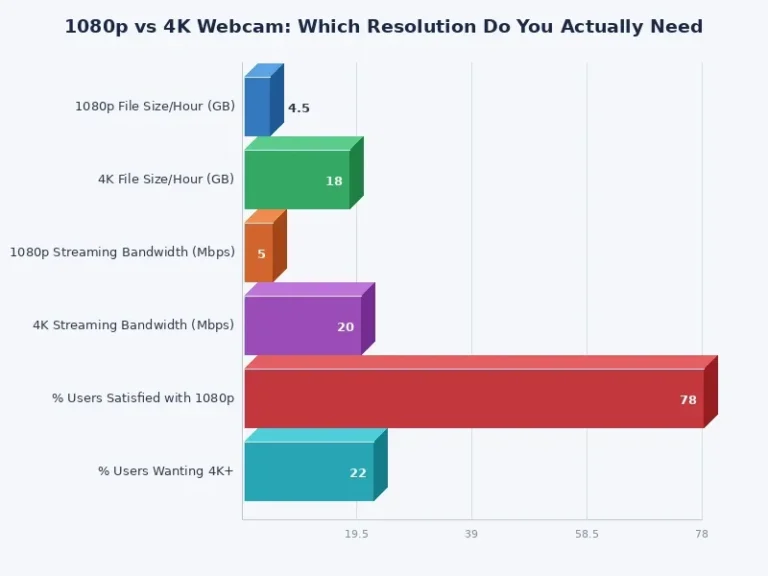
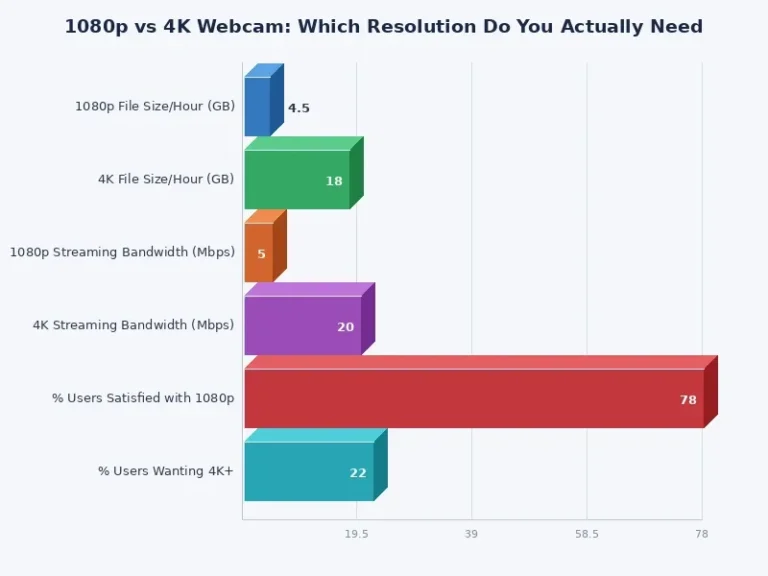
If you’ve exhausted these troubleshooting steps and your webcam still isn't cooperating, it might be time to consider a replacement. Think about what you need your webcam for. For casual video calls, a basic 720p or 1080p model will likely suffice.
If you're streaming or doing content creation, you'll want higher resolutions (1080p at 60fps or 4K), a wider field of view, and better low-light performance.
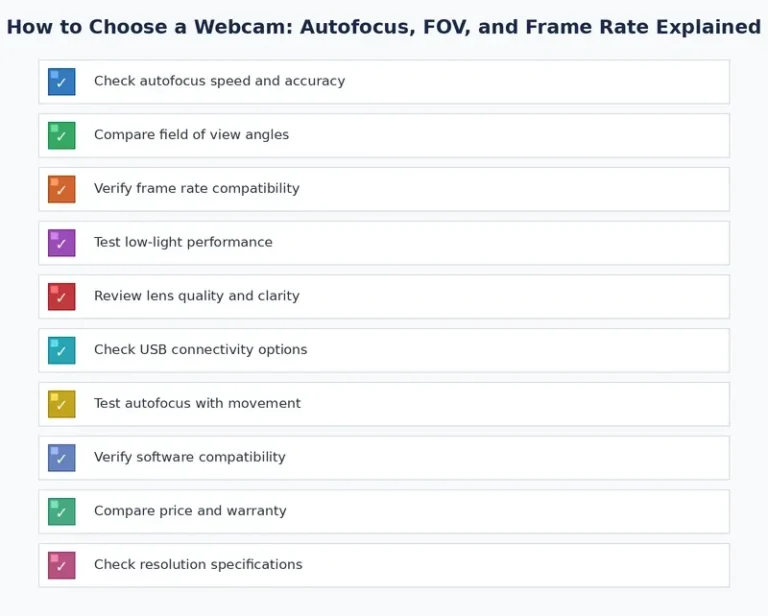
When choosing a new webcam, check reviews and specifications carefully. Look for features like autofocus, built-in stereo microphones, and compatibility with your operating system. For instance, Logitech webcams are widely regarded for their reliability and performance across various price points, offering options from simple business models to advanced streaming cameras.
As of 2026, many new webcams also include enhanced privacy features, such as physical shutters or software controls, giving you more peace of mind. If your computer itself is quite old, you might also consider if the computer’s USB ports are capable of supporting the bandwidth required by newer, higher-resolution webcams.