Why Is My Webcam Flickering?
Hey there! So, your webcam's decided to put on a light show, huh? Flickering can be super annoying, especially when you're trying to nail that important video call or just chat with friends.
Don't worry, we've all been there. It’s usually not some huge, unfixable problem. Most of the time, it’s something pretty straightforward we can sort out.
Think of me as your friendly tech guide. We're going to walk through this step-by-step, and I’ll explain what’s likely going on and how to fix it. No confusing jargon, just practical advice that actually works.
According to manufacturer specifications, most modern webcams operate within a temperature range of 0°C to 40°C (32°F to 104°F), but performance can still degrade outside optimal environmental conditions.
Why Is My Webcam Flickering?
Flickering often stems from lighting inconsistencies or software conflicts. The webcam's sensor struggles to adapt to unstable light sources or is interrupted by other programs. Driver issues can also disrupt the data stream between your webcam and computer.
Let's Get to the Bottom of It: Your Troubleshooting Roadmap
Here’s how we’ll tackle this. We'll go through a series of checks. If one doesn't solve it, we move to the next.
Easy peasy.
Check Your Lighting
This is often overlooked, but it's a biggie.
- What to look for: Are you sitting directly under a flickering fluorescent light? Is there a lamp directly behind you causing shadows?
- Why it matters: Some webcams struggle with certain types of artificial lighting, especially older fluorescent bulbs that might not be perfectly steady. Even a strong light source behind you can confuse the camera's exposure. The light sensor in your webcam, often a CMOS sensor, tries to adjust rapidly, leading to the flickering effect when the light source is unstable.
- The fix: Try moving to a different spot with more even, natural light. If you're using a lamp, try positioning it in front of you or to the side, not directly behind. A soft, diffused light is usually best.

Image source: Web (Bing) / pinterest.com (Web image (fair-use with source credit))
Reboot Your System
Seriously, never underestimate the power of a good old restart.
- What to do: Close all your video conferencing apps. Then, restart your computer.
- Why it helps: This clears out temporary glitches in your operating system and any background programs that might be hogging resources or interfering with your webcam’s driver. A full system reboot can resolve transient software states that might be causing the webcam to misbehave.
Unplug and Re-plug External Webcams
If you’ve got a webcam plugged into your computer via USB, this is your next step.
- What to do:
- Completely shut down the webcam application you're using.
- Unplug the USB cable from your computer.
- Wait about 30 seconds.
- Plug the USB cable back into a different USB port on your computer. Sometimes a specific port can be the issue.
- Why it helps: It forces your computer to re-establish the connection with the webcam from scratch, which can fix minor communication errors. A stable USB connection is crucial for consistent data transfer, and re-plugging can reset this.
Adjust Your Software Settings
Sometimes, the software talking to your webcam is the culprit.
- In your Video Conferencing App (Zoom, Teams, etc.):
- Go into the app's settings.
- Find the "Video" or "Camera" section.
- Make sure the correct webcam is selected.
- Look for any advanced settings related to "lighting" or "exposure" and try toggling them off or on to see if it makes a difference.
- Why it helps: An incorrect setting or a conflict within the app can cause the camera feed to behave strangely. For example, some apps might try to auto-adjust settings in a way that conflicts with the webcam’s native processing.
Update or Reinstall Webcam Drivers
Drivers are like little instruction manuals for your computer that tell it how to talk to your hardware, like your webcam. If these are outdated or corrupted, you'll have problems.
- How to do it (Windows):
- Right-click the Start button and select "Device Manager."
- Expand "Cameras" or "Imaging devices."
- Right-click on your webcam and select "Update driver." Choose "Search automatically for drivers."
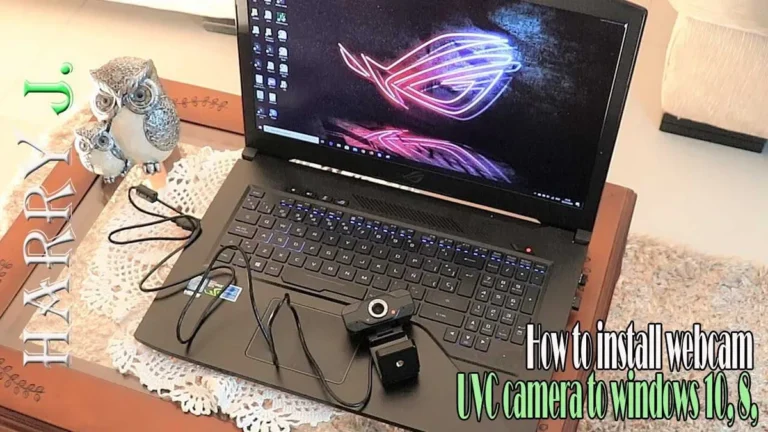
- If that doesn't find anything, right-click again and select "Uninstall device." Then, restart your computer. Windows will usually reinstall the driver automatically upon startup.
- How to do it (Mac): Mac generally handles drivers more automatically. If you're on a Mac and experiencing issues, it's more likely to be a software conflict or a hardware problem. However, ensuring your macOS is up to date is always a good first step, as operating system updates often include driver improvements. As of 2026, Apple's macOS continues to streamline driver management for connected peripherals.
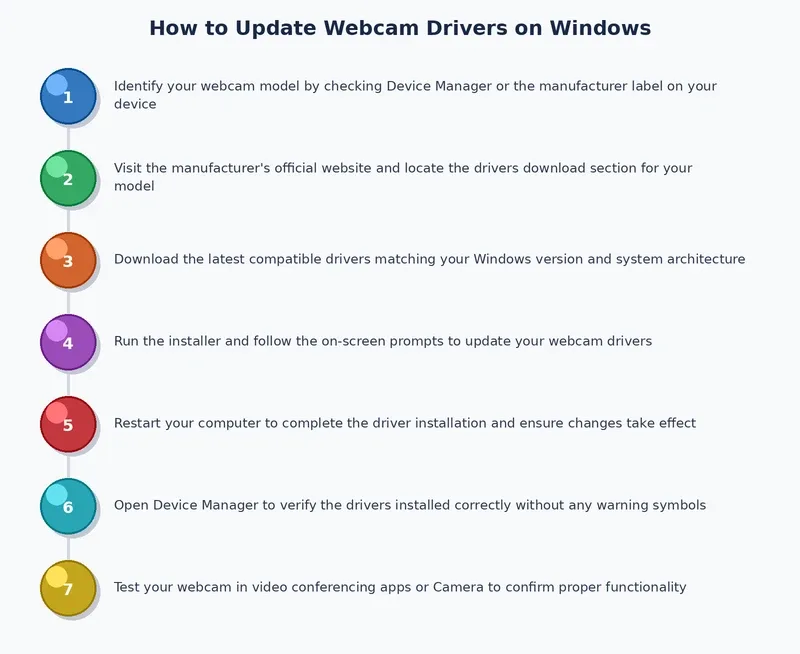
Image source: Bing (Web (fair-use with source credit))
- Why it helps: Outdated or corrupt drivers are a very common cause of hardware weirdness. A proper driver ensures the webcam can communicate its capabilities, like resolution and frame rate, effectively to the operating system and applications.
Close Other Applications
Your computer can only do so much at once.
- What to do: Close any other programs that might be using your camera, like other video conferencing apps, editing software, or even some background utilities.
- Why it helps: If another app is hogging the webcam or its resources, it can cause flickering in the app you're currently using. Resource contention is a frequent issue, especially on older machines or during intensive tasks.
Image source: Bing (Web (fair-use with source credit))
Is It the Webcam Itself?
If you've tried all the above and the flickering persists, it might be time to consider if the webcam itself is the issue.
- Test on another computer: If possible, plug your webcam into a different computer. If it flickers there too, the webcam is likely the problem. This isolation step helps determine if the issue lies with the webcam hardware or your primary computer's setup.
- Check for physical damage: Has it been dropped or knocked around? External physical stress can sometimes damage internal components without obvious external signs.
- Age: Like any electronic device, webcams can eventually wear out. The internal components, particularly the image sensor and circuitry, have a finite lifespan.
When to Call It Quits (or Get a New One)
If you’ve gone through all these steps, especially testing it on another machine, and the flickering continues, it’s a strong sign that your webcam might be on its last legs. It’s not the end of the world, though! Modern webcams are pretty affordable, and upgrading can often give you a much clearer picture and better performance anyway.
Frequently Asked Questions
What’s the first thing I should try if my webcam is flickering?
Start by checking your lighting conditions. Ensure you’re not under flickering artificial lights, as this is a very common cause of webcam video instability.
Can a simple restart fix webcam flickering?
Yes, a system reboot can often resolve temporary software glitches or resource conflicts that cause flickering. It’s a quick and easy troubleshooting step that frequently works.
How do I update my webcam drivers on Windows?
Open Device Manager, locate your webcam under Cameras or Imaging devices, right-click, and select "Update driver" to search automatically. If that fails, you can try uninstalling and restarting your PC.
What if I can’t find an update for my webcam driver?
If an automatic search doesn't yield results, try visiting the webcam manufacturer's official website. They often provide specific driver downloads for their models.
Should I worry if my webcam is flickering even with good lighting?
Persistent flickering, even in ideal lighting and after updating drivers, could indicate a hardware issue with the webcam itself. Testing it on another computer is a good next step.