What Is a Webcam and How Does It Work?
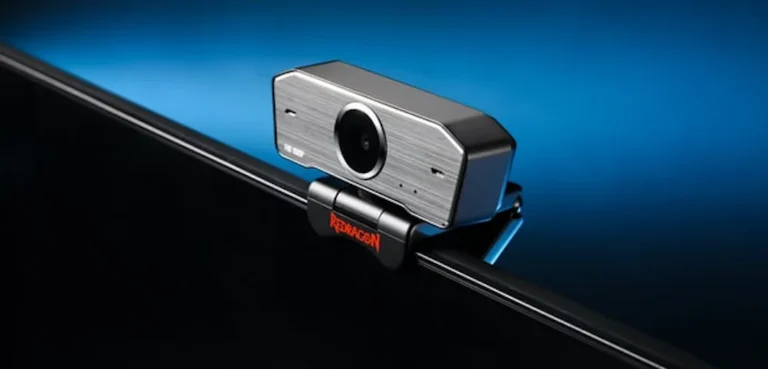
A webcam is a simple gadget that lets your computer see and interact with the world. It’s that little camera perched on your monitor, or sometimes built right into your laptop, that makes video calls possible and brings a visual element to online communication. Understanding what it is and how it works is easier than you might think.
Essentially, a webcam is a small digital camera designed to connect to a computer, often via a USB port, to capture and transmit video in real-time. Most webcams, like those adhering to the USB 2.0 standard, are capable of transmitting data at speeds up to 480 megabits per second, allowing for smooth video playback. This technology powers everything from chatting with family across the country to participating in crucial business meetings.
Seeing Is Believing: What Exactly Is a Webcam?
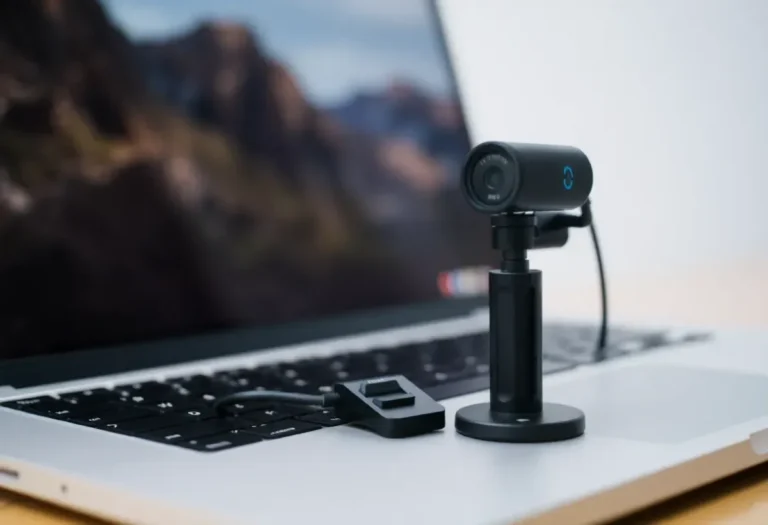
A webcam is a small, digital video camera connected to your computer or network that can capture still images or transmit live video. It's become an indispensable tool for modern communication, bridging geographical distances and adding a personal touch to digital interactions. You've likely seen them on laptops, monitors, or even mounted on tripods during video calls.
How Does a Webcam Actually Capture Your Image?
At its heart, a webcam takes light, converts it into digital information, and sends it to your computer. It's a streamlined process designed for speed and efficiency, allowing you to see and be seen in near real-time. This involves a few key components working in harmony.
The Lens and the Sensor: Your Webcam's Eyes
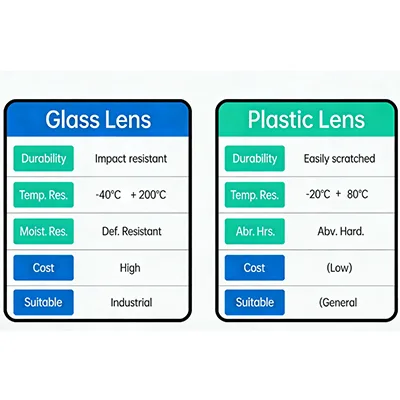
The journey of an image begins with the lens. This is like the eye of the webcam, gathering light from the scene in front of it. Different lenses offer various fields of view, meaning how much of the scene the camera can capture.
After passing through the lens, the light strikes the image sensor. This is a tiny chip, often made of silicon, that converts light photons into electrical signals. Think of it as a grid of tiny light-sensitive buckets, each one capturing the intensity of light that falls on it.
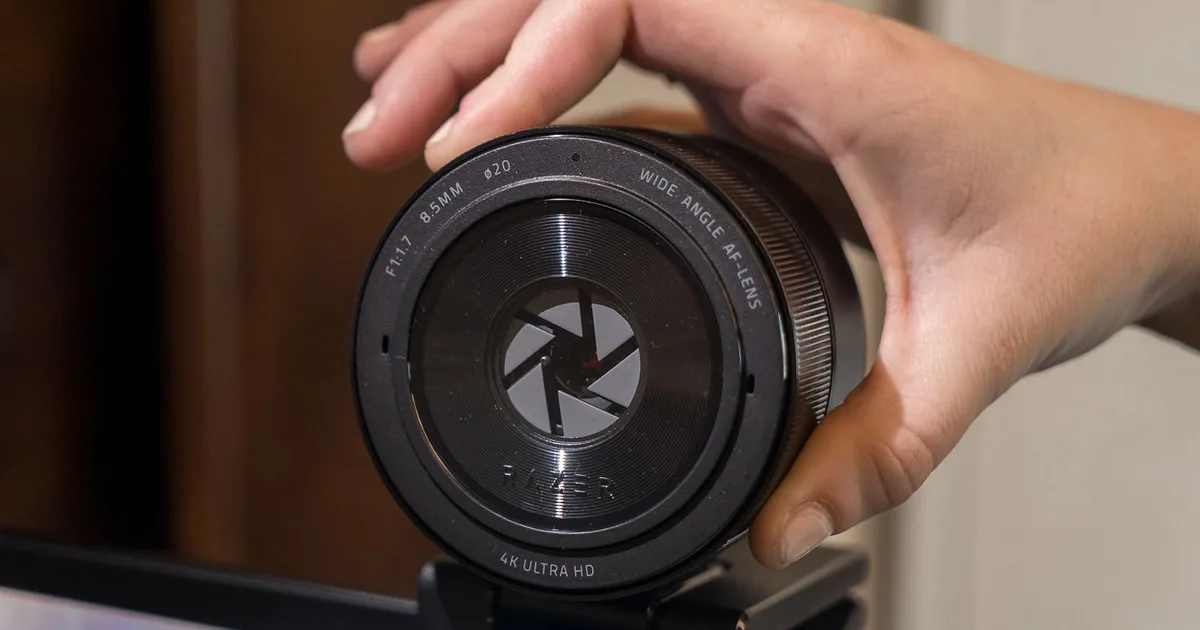
Image source: Bing / petapixel.com (Web image (fair-use with source credit))
From Light to Pixels: The Image Sensor's Job
The image sensor is where the magic of turning light into digital data really happens. It’s composed of millions of microscopic light-sensitive elements called pixels. When light hits these pixels, they generate an electrical charge proportional to the light's intensity.
The stronger the light, the greater the charge. This electrical signal is then read by the camera's internal circuitry.
Turning Pixels into Data: Encoding and Transmission
Once the electrical signals are captured by the sensor, they are processed and converted into digital data. This data represents the image as a grid of colored dots, or pixels. This information is then compressed to make it smaller and easier to transmit.
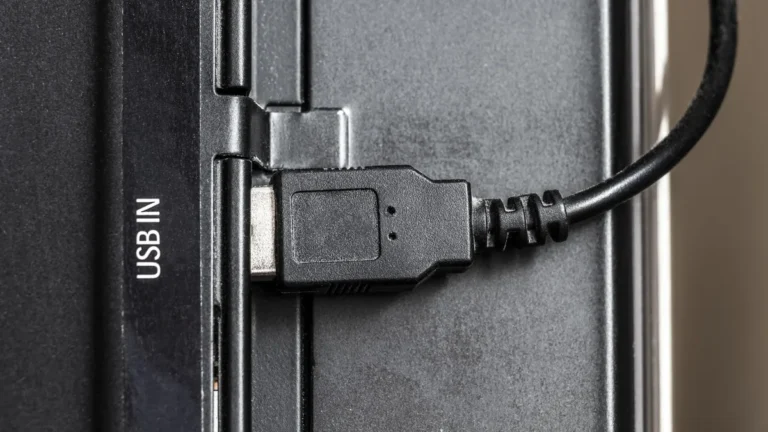
The webcam then sends this compressed data, typically over a USB connection to your computer. Your computer then decodes this data and displays it as a video feed.
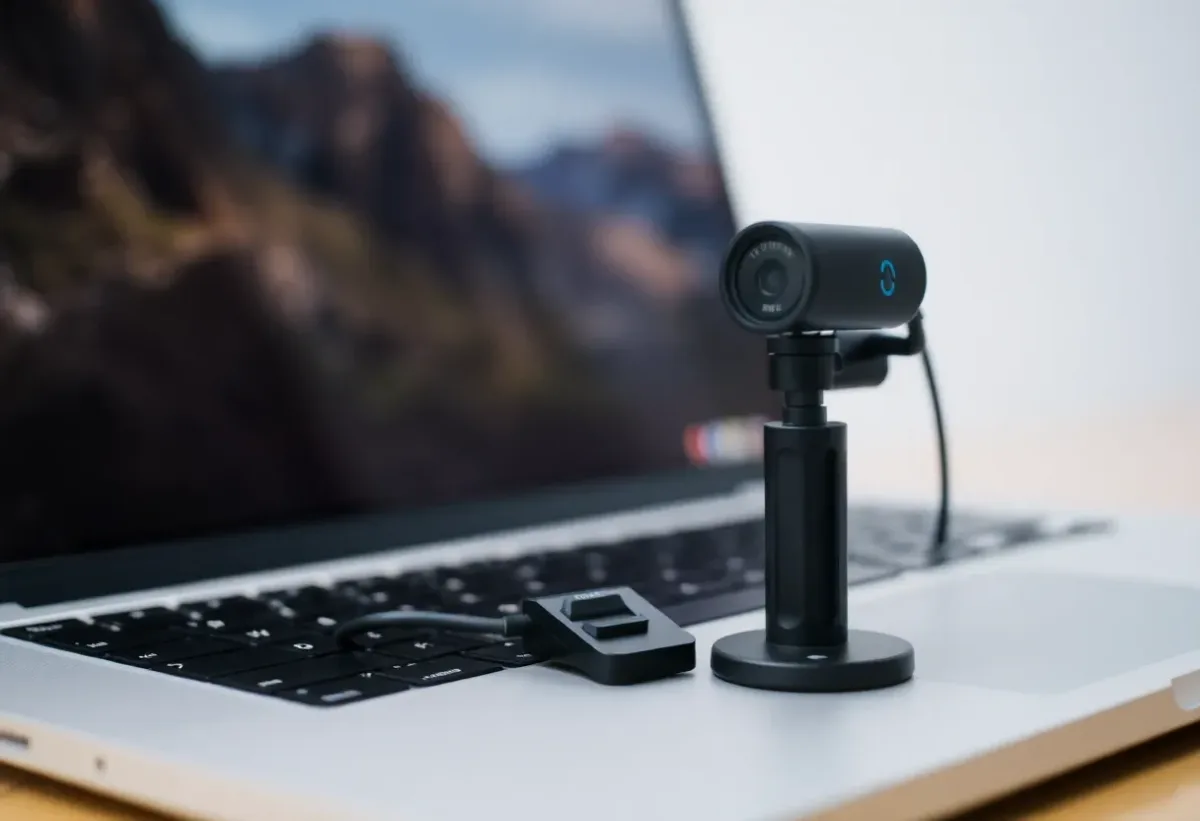
Image source: Web (Bing) / pngtree.com (Web image (fair-use with source credit))
Key Webcam Features: What to Look For
When you're looking at webcams, a few features stand out that significantly impact video quality and usability. It’s not just about having a camera; it’s about having one that performs well for your needs. Understanding these specs helps you choose the right device.
Resolution and Frame Rate: Sharper, Smoother Video
Resolution refers to the number of pixels that make up the image, dictating how clear and detailed your video appears. Common resolutions include 720p (1280×720 pixels), 1080p (1920×1080 pixels, also known as Full HD), and even 4K (3840×2160 pixels). Higher resolutions mean sharper images, but they also require more processing power and bandwidth.
Frame rate, measured in frames per second (FPS), determines how smoothly motion is displayed. A standard rate for video conferencing is often around 30 FPS. Higher frame rates, like 60 FPS, result in smoother, more fluid video, which is particularly noticeable in fast-paced action or when streaming.
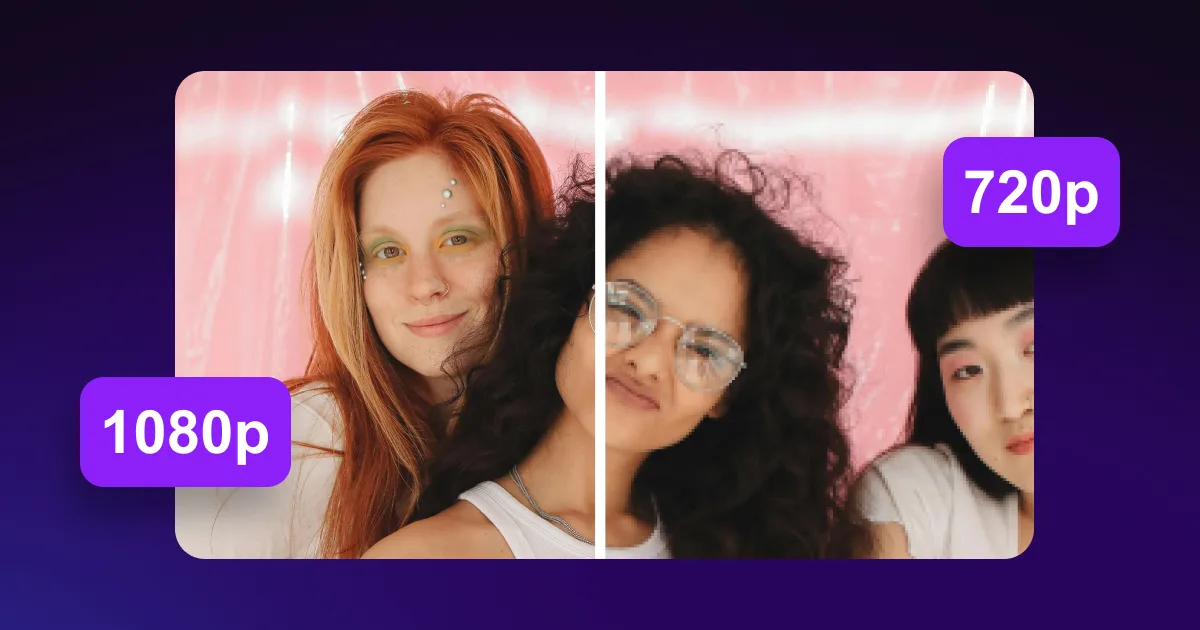
Image source: Bing (Web (fair-use with source credit))
Autofocus and Low-Light: Staying Clear in Any Setting
Autofocus is a feature that automatically adjusts the lens to keep your image sharp, even if you or the camera moves. This is incredibly handy for video calls, ensuring you remain in focus without manual adjustments. Low-light performance refers to how well the webcam can capture a clear image in dim environments.
Cameras with good low-light capabilities use larger sensors or advanced image processing to reduce graininess and brighten the picture without introducing excessive noise.
Field of View and Microphone: What Else Matters?
The field of view (FOV) determines how wide an area the webcam can capture. A wider FOV is great if you need to show more of your background or have multiple people in the frame. A narrower FOV focuses more tightly on the subject.
Most webcams also include a built-in microphone, though its quality can vary. For critical audio, an external microphone is often recommended.
Putting Your Webcam to Work: Common Uses and Who Needs One
Webcams have moved far beyond just simple video chatting; they are now essential tools in many different aspects of our lives, both personal and professional. Their versatility makes them valuable for a wide range of users.
Video Calls and Meetings: Connecting from Afar
This is perhaps the most common use. Whether you're catching up with family on the other side of the country or attending a virtual business meeting with international colleagues, webcams enable face-to-face interaction. They foster a sense of presence that text-based communication can't replicate.
For remote workers, they are a crucial part of daily collaboration, making team meetings feel more personal and productive.
Streaming and Content Creation: Sharing Your World
For gamers, educators, artists, and anyone looking to build an online audience, a webcam is fundamental for live streaming. Platforms like Twitch, YouTube, and Facebook Live rely on webcams to broadcast gameplay, tutorials, Q&A sessions, and more. High-quality video is essential for engaging viewers and making content look professional.
Remote Learning and Work: The New Normal
The rise of remote work and online education has made webcams absolutely vital. Students use them for virtual classrooms, lectures, and group projects, while employees use them for daily team check-ins, client presentations, and project collaboration. They are a key piece of hardware that allows these environments to function effectively, ensuring that participants can see and hear each other clearly.
Getting Started: Plugging In and Setting Up Your Webcam
Setting up a webcam is usually a breeze, designed to be user-friendly so you can start connecting quickly. Most modern webcams are built with plug-and-play technology, meaning you don't need to be a tech whiz to get them working. The process generally involves a few simple steps, from connecting the hardware to selecting it in your chosen software.
The Simple Connection: Plug-and-Play Power
For the vast majority of webcams, getting started involves nothing more than plugging the USB cable into an available port on your computer. Many operating systems, like Windows and macOS, will automatically detect the new hardware and install the necessary basic drivers. This means you can often go from unboxing to video calling in just a few minutes.
If your webcam requires specific software or advanced features, the manufacturer might prompt you to download drivers or an application from their website.
Finding Your Best Angle: Positioning for Success
Where you place your webcam can significantly impact how you appear on screen. Ideally, the webcam should be positioned at eye level. This creates a more natural and engaging viewing experience, as it mimics direct eye contact.
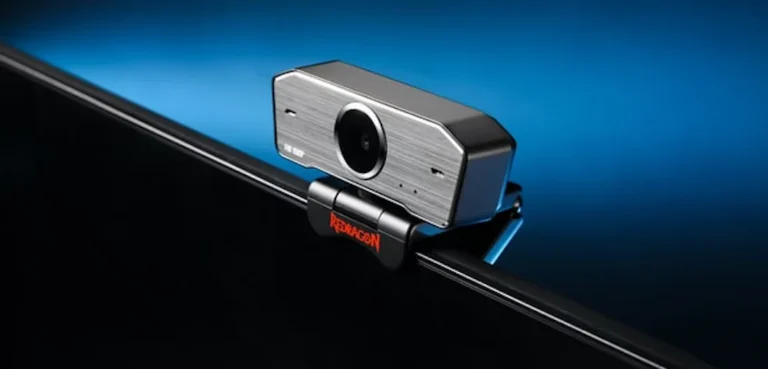
Mounting clips often allow you to attach the webcam to the top of your monitor, which is typically at a good height. If the camera is too low, it can look awkward; if it's too high, it might capture the top of your head or ceiling. A stable surface or a mount that allows for adjustment is key.
Software Setup: Selecting Your Webcam
Once physically connected and powered on, your computer recognizes the webcam, but the applications you use for video calls or streaming need to know which camera to use. When you open software like Zoom, Microsoft Teams, Google Meet, or OBS Studio, you’ll typically find a settings menu related to video or audio devices. Within this menu, you'll be able to select your webcam from a list of available cameras.
This ensures that the video feed from your chosen webcam is routed to the correct application for your online interactions.
Avoiding Webcam Woes: Common Mistakes and How to Fix Them
Even with simple setup, a few common issues can pop up with webcams, affecting your video and audio quality. Thankfully, most of these problems have straightforward solutions that don't require advanced technical knowledge. Being aware of them can save you a lot of frustration.
Blurry Images and Bad Lighting
One of the most frequent complaints is blurry video. This can stem from a few sources. First, ensure the webcam's lens is clean; smudges can significantly degrade image quality.
If your webcam has autofocus, make sure it's enabled and functioning. If manual focus is an option, try adjusting it. Poor lighting is another major culprit for less-than-ideal video.
If your room is too dark, the webcam's sensor struggles to capture enough light, leading to grainy, noisy footage. Conversely, if there's a bright light source directly behind you, it can make you appear as a silhouette. The solution?
Use diffuse, even lighting in front of you, and ensure the room isn't excessively dark.
Audio Annoyances and Lagging Video
Bad audio can be just as disruptive as poor video. If your microphone sounds muffled, distant, or has a lot of background noise, check that it's selected as the primary audio input in your software settings. Ensure there are no physical obstructions blocking the microphone holes.
Echoes or feedback can occur if your speakers are too loud or too close to the microphone. Lagging or choppy video is often a sign of insufficient bandwidth or your computer struggling to process the video stream. Closing unnecessary applications that are using your internet connection or computer resources can help.
For significant lag, checking your internet speed is also advisable.
When to Level Up: Considering Webcam Alternatives
While dedicated webcams offer excellent convenience and quality for many, they aren't the only way to get video onto your computer. Depending on your needs and what you already have available, you might consider other options. Smartphones, with their advanced camera systems, can often serve as high-quality webcams with the right app.
Many users find that the camera on their modern smartphone offers superior resolution and low-light performance compared to entry-level webcams.
Some people also use professional DSLR or mirrorless cameras for streaming, though this often requires additional hardware like a capture card. This setup is typically for content creators who prioritize the highest possible video quality. Built-in laptop cameras are the most convenient but typically offer the lowest quality and fewest features, often suffering from poor low-light performance and narrow fields of view.
How Can I Use My Smartphone as a Webcam?
To use your smartphone as a webcam, you'll typically download an app on both your phone and computer. Popular apps facilitate a connection over your Wi-Fi network or via a USB cable. Once connected, your smartphone's camera feed can be selected within your video conferencing or streaming software, much like a dedicated webcam.
This offers a great way to improve video quality without purchasing new hardware if you already own a capable smartphone.
What's the Difference Between a Webcam and a DSLR for Video?
A dedicated webcam is designed for easy, plug-and-play video communication, offering a balance of quality and cost. A DSLR or mirrorless camera, on the other hand, is primarily a still photography tool that can also shoot high-quality video. Using one as a webcam usually involves connecting it via HDMI to a capture card, which then sends the signal to your computer.
This setup provides professional-grade video quality, superior lens options, and more control over depth of field, but it's significantly more complex and expensive.
Webcam Maintenance: Keeping Your Camera Sharp
Just like any piece of technology, a webcam can benefit from a little care to ensure it continues to perform at its best. Regular, simple maintenance can prevent common issues and extend the lifespan of your device. Most of these tasks take only a minute or two.
Cleaning the Lens: A Clear View is Key
Over time, dust, fingerprints, and other smudges can accumulate on your webcam's lens. This can lead to blurry images, reduced sharpness, and a generally degraded video quality. To clean the lens, use a soft, lint-free microfiber cloth, the kind used for cleaning eyeglasses or camera lenses.
Gently wipe the lens in a circular motion, starting from the center and moving outwards. Avoid using abrasive materials, harsh chemicals, or excessive pressure, as these can scratch or damage the lens coating.
Software and Driver Updates: Staying Current
While many webcams work fine with generic drivers, manufacturers sometimes release updates that can improve performance, fix bugs, or add new features. Check the manufacturer's support website periodically for any available driver or software updates for your specific webcam model. Installing these updates can sometimes resolve performance issues or even enhance image quality.
Keeping your operating system updated also plays a role, as newer OS versions often improve compatibility with USB devices like webcams.
Webcam Setup Mistakes: What to Avoid for Best Results
Even with plug-and-play technology, a few common setup errors can prevent you from getting the best possible video and audio performance. Being aware of these pitfalls can help you troubleshoot quickly and ensure your webcam is working optimally. These are often simple oversights.
Ignoring Lighting Conditions
One of the biggest mistakes is not paying attention to the lighting in your environment. Placing a webcam in a dimly lit room, or having a strong light source directly behind you (like a window on a sunny day), will result in poor image quality. Your face might be too dark, grainy, or appear as a silhouette.
The fix is simple: position a light source in front of you, ideally diffused, to illuminate your face evenly. Natural daylight from a window facing you is often ideal.
Incorrect Software Selection
Another common issue is not selecting the correct webcam in your video conferencing or streaming application. Most computers can have multiple cameras connected or have built-in options. If you've just plugged in a new webcam, your software might still be set to use the laptop's internal camera.
You need to go into the settings of your application (like Zoom, Teams, or Skype) and manually select your new webcam from the list of available video devices to ensure it's being used.
Frequently Asked Questions
What is the main purpose of a webcam?
The main purpose of a webcam is to capture and transmit video and images in real-time, enabling face-to-face communication over the internet through video calls, online meetings, and live streaming.
How do I know if my computer recognizes my webcam?
When you plug in a webcam, your operating system (like Windows or macOS) will usually display a notification that it's installing drivers or that the device is ready. You can also check your system's device manager to see if the webcam is listed under cameras or imaging devices.
Can I use my smartphone as a webcam?
Yes, many apps allow you to use your smartphone's camera as a webcam for your computer. These apps typically connect your phone to your computer wirelessly via Wi-Fi or through a USB cable, often providing higher image quality than standard webcams.
What does "1080p" mean for a webcam?
"1080p" refers to a video resolution of 1920 pixels wide by 1080 pixels tall, commonly known as Full HD. This resolution provides a sharper, more detailed image compared to lower resolutions like 720p.