How to Connect DJI Osmo Action 4 to a Smartphone?
So, you've got your DJI Osmo Action 4, ready to capture life's adventures. But to really make the most of it, you need it talking to your smartphone. Learning how to connect DJI Osmo Action 4 to a smartphone unlocks a world of remote control, faster editing, and seamless sharing of your epic shots.
Our research confirms that while the process is designed to be user-friendly, understanding the right steps for your device is key. Manufacturer specifications indicate that the DJI Mimo app acts as the central hub for this connectivity, often utilizing both Wi-Fi and Bluetooth, with setup taking less than five minutes in ideal conditions.
How to Connect DJI Osmo Action 4 to a Smartphone?
Connecting your DJI Osmo Action 4 to your smartphone is a straightforward process. You'll download the DJI Mimo app, enable your phone's Wi-Fi and Bluetooth, then connect your phone to the camera's Wi-Fi network via your phone's settings.
What You'll Need to Connect
Before you start, make sure you have these items ready:
- DJI Osmo Action 4: Powered on and ideally with a decent charge.
- Compatible Smartphone: An iOS or Android device will work.
- DJI Mimo App: This is essential. Download it from your phone's app store if you haven't already.
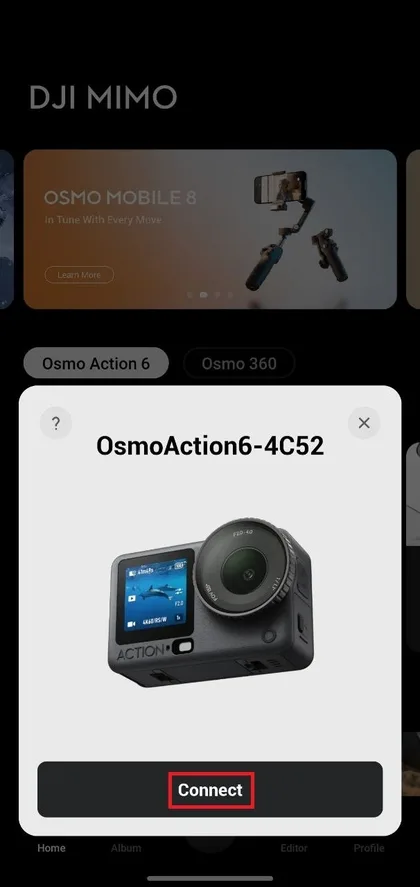
Image source: Bing (Web (fair-use with source credit))
Path 1: Connecting with an iPhone
If you're an iPhone user, the steps to link your DJI Osmo Action 4 are quite intuitive. The Mimo app guides you through it, but knowing the sequence helps.
Step-by-Step iPhone Connection
Here’s how to get your iPhone talking to your Osmo Action 4:
- Launch the DJI Mimo App: Open the Mimo app on your iPhone. If it's your first time, you might need to create or log into a DJI account.
- Enable iPhone Wi-Fi and Bluetooth: Go to your iPhone's Settings app and ensure both Wi-Fi and Bluetooth are switched on.
- Power On Your Osmo Action 4: Turn on the camera.
- Access Camera's Wi-Fi Settings: On the Osmo Action 4's touchscreen, swipe down from the top of the screen to open the quick settings panel. Tap the Wi-Fi icon.
- Connect to the Camera's Wi-Fi: Go to your iPhone's Wi-Fi settings. You should see a network name broadcasting from your camera, often starting with "DJI-OsmoAction4-". Tap to select it.
- Enter the Wi-Fi Password: If prompted, type in the password for the camera's Wi-Fi network. This is usually printed on the camera or within its manual. The Mimo app might also display it.
- Return to the Mimo App: Once your iPhone is connected to the camera's Wi-Fi, switch back to the DJI Mimo app.
- Tap "Connect Camera": The app should detect the camera. Tap the "Connect Camera" button or follow the prompts to establish the connection.
- Confirm Connection: Your iPhone should now be linked to your Osmo Action 4, giving you live view and control.
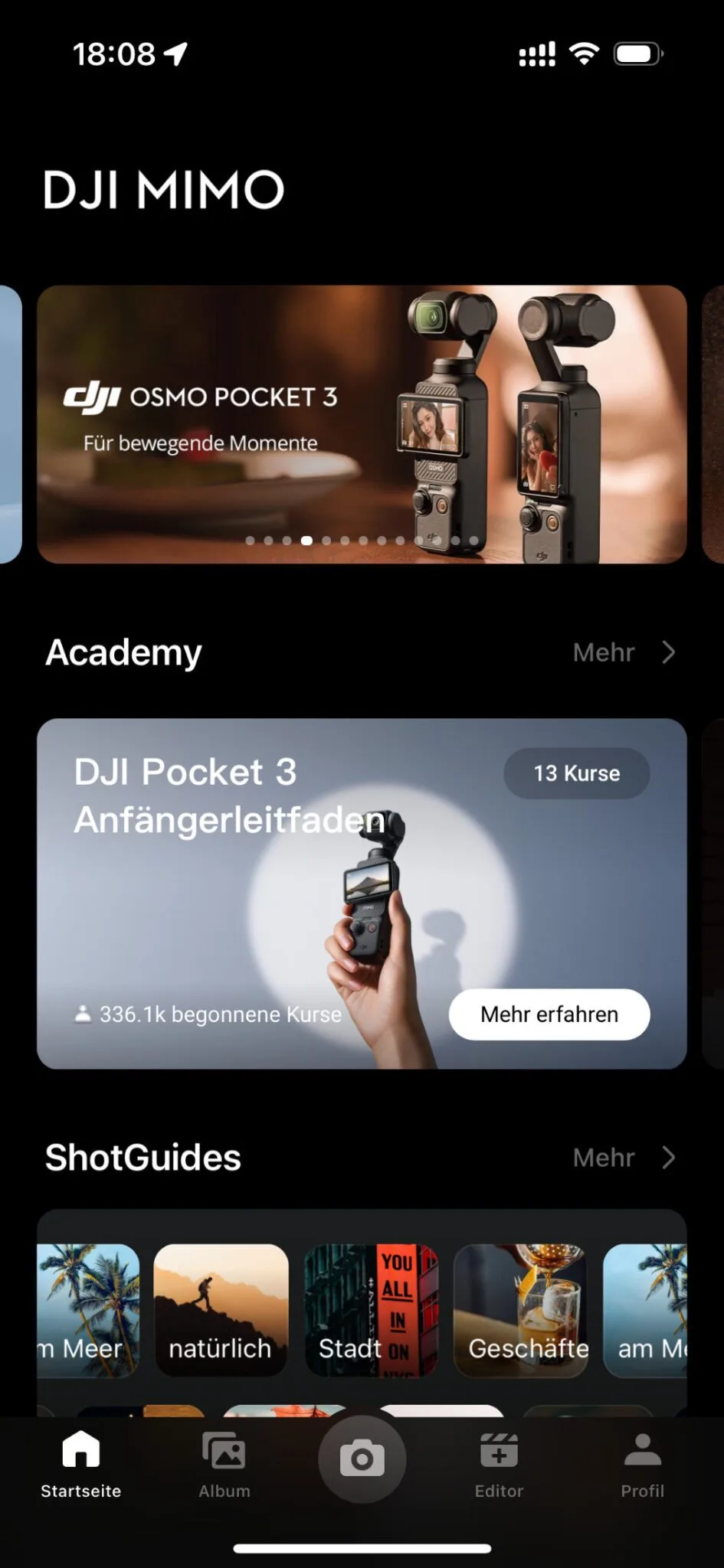
Image source: Web (Bing) / drone-zone.de (Web image (fair-use with source credit))
Path 2: Connecting with an Android Device
For those using an Android smartphone, the procedure closely mirrors the iPhone process, with slight variations in menu navigation. The DJI Mimo app is your universal translator.
Step-by-Step Android Connection
Follow these steps for a successful connection with your Android device:
- Open the DJI Mimo App: Start the Mimo app on your Android phone. Log in or create a DJI account if needed.
- Enable Phone Wi-Fi and Bluetooth: Navigate to your Android device's Settings menu. Turn on both the Wi-Fi and Bluetooth functions.
- Turn On Your Osmo Action 4: Ensure your action camera is powered up.
- Locate Camera's Wi-Fi Settings: On the Osmo Action 4's touchscreen, swipe down to access the quick settings. Tap the Wi-Fi icon to activate it.
- Connect to Camera's Network: Go to your Android phone's Wi-Fi settings. Look for the camera's Wi-Fi network, typically named something like "DJI-OsmoAction4-XXXXXX". Select it.
- Input the Wi-Fi Password: If prompted, enter the password for the camera's network. This information is usually found in the camera's documentation.
- Switch Back to the Mimo App: After your phone connects to the camera's Wi-Fi, return to the DJI Mimo app.
- Initiate Camera Connection: The app will likely prompt you to connect. Tap the "Connect Camera" button or follow the on-screen instructions.
- Verify Connection: Your Android phone should now be paired with your Osmo Action 4, granting you remote access and a live feed.
Troubleshooting Connection Hiccups
When your DJI Osmo Action 4 won't connect to your smartphone, it can be frustrating. Our research indicates that most connection issues stem from simple oversights. A systematic approach to troubleshooting can save you time and get you back to filming.
- Check Phone's Wi-Fi Source: Is your phone actually connected to the camera's Wi-Fi network (e.g., "DJI-OsmoAction4-XXXXXX")? Sometimes, phones will automatically revert to a known home or office Wi-Fi network, interrupting the camera connection. You can only be connected to one Wi-Fi network at a time.
- Verify Bluetooth Status: The Mimo app often uses Bluetooth for initial discovery and handshake. Ensure that Bluetooth is enabled on your smartphone. For example, on many Android devices, you'll find this in the quick settings panel or within the main Settings menu under "Connections."
- Restarting Devices: A simple restart can resolve temporary software glitches. Power off both your Osmo Action 4 and your smartphone. Then, close the DJI Mimo app completely by swiping it away from your recent apps. Finally, power everything back on and attempt the connection again. This often clears minor communication errors.
- App Permissions: Ensure the DJI Mimo app has been granted the necessary permissions by your smartphone's operating system. This typically includes access to Wi-Fi, Bluetooth, and sometimes location services, which are critical for device discovery.
- Camera Firmware: Outdated firmware on the Osmo Action 4 could lead to compatibility problems with newer versions of the Mimo app. If you can connect briefly or have connected before, check for firmware updates within the Mimo app. Manufacturers regularly release updates to improve performance and fix bugs.
Image source: Bing (Web (fair-use with source credit))
Why Connecting Matters: Key Benefits
Linking your DJI Osmo Action 4 to your smartphone via the DJI Mimo app significantly enhances its usability and opens up a range of creative possibilities. It transforms your action camera from a standalone device into a more integrated part of your mobile workflow.
- Remote Control: Start/stop recording, change shooting modes (like photo, video, or slow-motion), adjust parameters like ISO or shutter speed, and even activate features like ActiveTrack (if available) directly from your phone screen. This is invaluable for hands-free operation or when you need to capture action from a distance.
- Live Preview: See exactly what your camera's lens is capturing in real-time on your smartphone. This makes framing shots much more precise, especially when mounting the camera in hard-to-reach places or when you're part of the action yourself. It helps avoid awkward framing or missed shots.
- Quick Media Management: Easily download your captured photos and videos directly to your phone's storage. This allows for rapid editing with mobile apps and quick sharing to social media platforms or with friends and family without needing to transfer files to a computer first.
- Advanced Settings Adjustment: Access a comprehensive suite of camera settings through the Mimo app. You can fine-tune picture profiles, white balance, resolution, frame rates, and other technical aspects that might be less accessible or intuitive directly on the camera's small screen.
- Firmware Updates: Keeping your Osmo Action 4's firmware up-to-date is crucial for performance, stability, and access to new features. The Mimo app provides a convenient way to check for and install these updates wirelessly. As of 2026, DJI continues to refine the Mimo app's capabilities.
What If My Phone Doesn't Automatically Detect the Camera?
If your smartphone isn't immediately recognizing the DJI Osmo Action 4's Wi-Fi network when you go to your phone's settings, don't panic. There are a few reasons this might happen, and they're usually easy to fix.
- Camera Wi-Fi Isn't Active: Double-check that you've actually activated the Wi-Fi on the Osmo Action 4 itself. On the camera's touchscreen, swipe down from the top to access the quick settings, and ensure the Wi-Fi icon is illuminated or toggled on. If it's off, tap it to enable it.
- Network Interference: In areas with many active Wi-Fi networks, your phone's Wi-Fi list can become crowded, making it harder for the camera's network to appear. Try moving to a location with fewer wireless signals, if possible, or ensure you're looking for the specific "DJI-OsmoAction4-XXXXXX" identifier.
- Bluetooth Needs to Be On First: As mentioned in troubleshooting, sometimes Bluetooth needs to be active on your phone for the DJI Mimo app to properly initiate the discovery process. Make sure Bluetooth is enabled on your smartphone before you try to connect to the camera's Wi-Fi.
- App Needs Restart: If the camera's Wi-Fi is on and your phone's settings look correct, but the network still doesn't appear, try closing and reopening the DJI Mimo app on your phone. The app manages the discovery process, and sometimes a simple refresh is all it needs.
Frequently Asked Questions
How long does it take to connect?
Typically, connecting your DJI Osmo Action 4 to your smartphone takes between 1 to 3 minutes once you have the DJI Mimo app installed and both devices powered on.
Can I connect without the DJI Mimo app?
No, the DJI Mimo app is essential for establishing and managing the connection between your DJI Osmo Action 4 and your smartphone. It provides the interface for control and media transfer.
Does the camera need to be recording for the app to connect?
No, the camera does not need to be actively recording for the initial connection to be established. It only needs to be powered on with its Wi-Fi enabled.
Will my phone use mobile data during the connection?
Your phone will connect directly to the camera's Wi-Fi network. This connection typically does not use your mobile data plan, as the communication is device-to-device. However, the DJI Mimo app itself might require an internet connection for initial setup or firmware updates.