Do Webcams Work With Smart TVs?
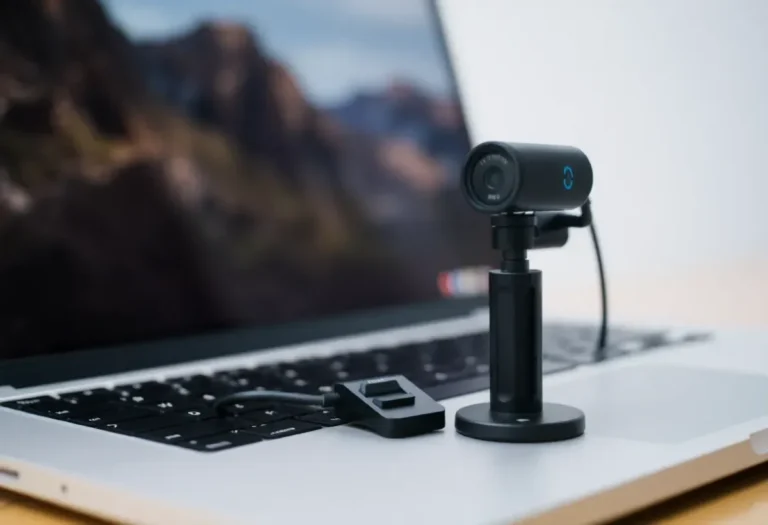
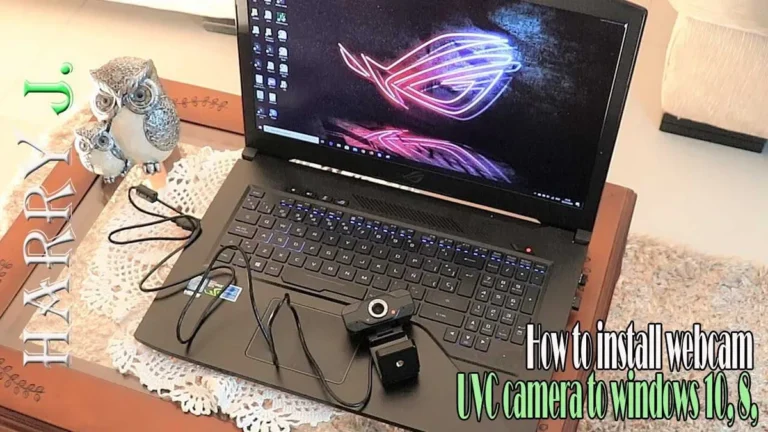
Want to make video calls on your big screen but wondering, "Do webcams work with smart TVs?" You're not alone. Many people want to upgrade their video conferencing experience from a small laptop screen to the immersive view of their television. While it's not always a plug-and-play situation, there are definitely ways to make it happen.
Our research shows that direct webcam-to-TV connection often depends on the specific TV model's capabilities and the webcam's USB compatibility. Some smart TVs, especially newer ones, might support USB webcams, but often the magic happens with a small external device. For instance, compatibility can hinge on the TV's operating system supporting the necessary drivers for a webcam, a feature often found in smart TVs running Android TV or Google TV, which generally follow more open standards like USB Mass Storage Class.
Do Webcams Work With Smart TVs?
Yes, webcams can work with smart TVs, but it's not a universal feature. Direct connection often requires your smart TV to have compatible USB ports and support for the webcam's drivers. More commonly, a webcam can be made to work by connecting it to an external media player, like a streaming stick or box, which then connects to your TV.
What Kind of Smart TV Do You Have?
That's the first big question you need to ask yourself. Not all smart TVs are created equal when it comes to handling external peripherals like webcams.
TVs with Built-in USB Ports
Many modern smart TVs come equipped with one or more USB ports. These are usually found on the back or side of the TV. In theory, you could plug a USB webcam directly into one of these ports.
However, having a USB port doesn't automatically guarantee webcam compatibility.
Manufacturer specifications indicate that the TV's operating system and firmware need to recognize and support the webcam's drivers to function. Some TVs are designed to only read USB drives for media playback or firmware updates, not to act as a host for complex devices like cameras. You'll want to check your TV's manual or the manufacturer's website to see if it lists webcam support or compatible USB device types.
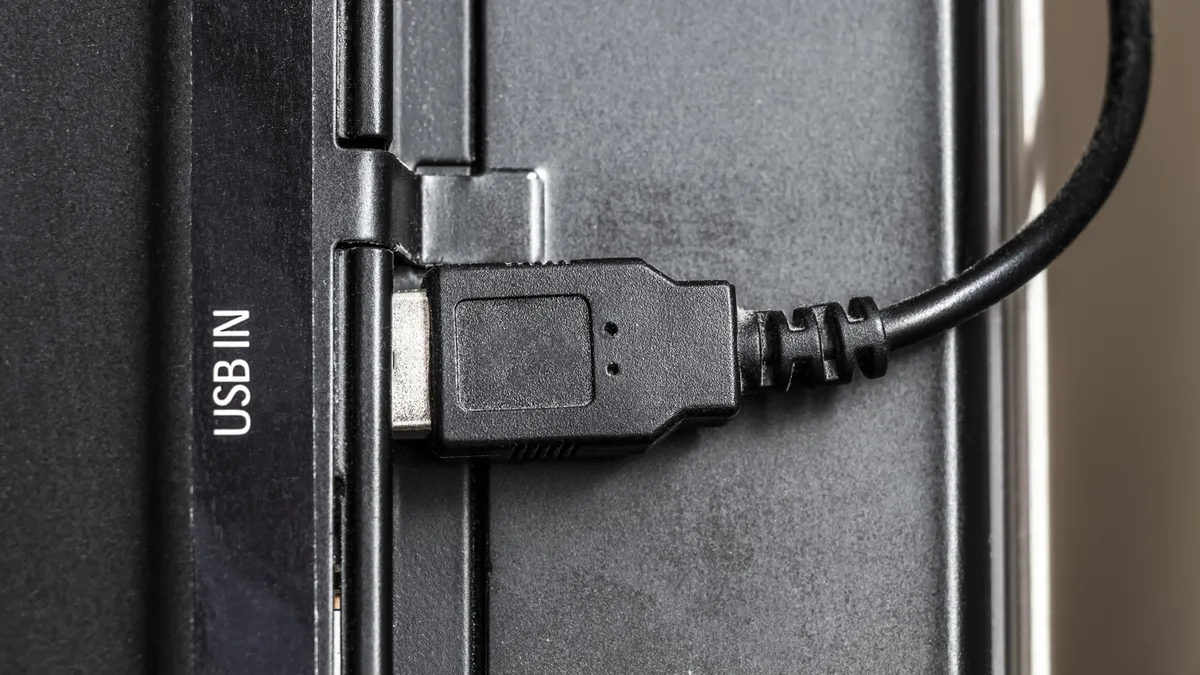
Image source: Bing (Web (fair-use with source credit))
TVs with Limited USB Functionality
Even if your TV has USB ports, they might be limited in what they can do. For example, some USB ports might be for service purposes only, or they might not provide enough power to run a webcam. Others might only support USB Mass Storage Class devices, meaning they'll happily read a USB flash drive but won't recognize a webcam.
If your TV's USB ports are primarily for media playback, direct webcam connection is unlikely to work without an intermediary.
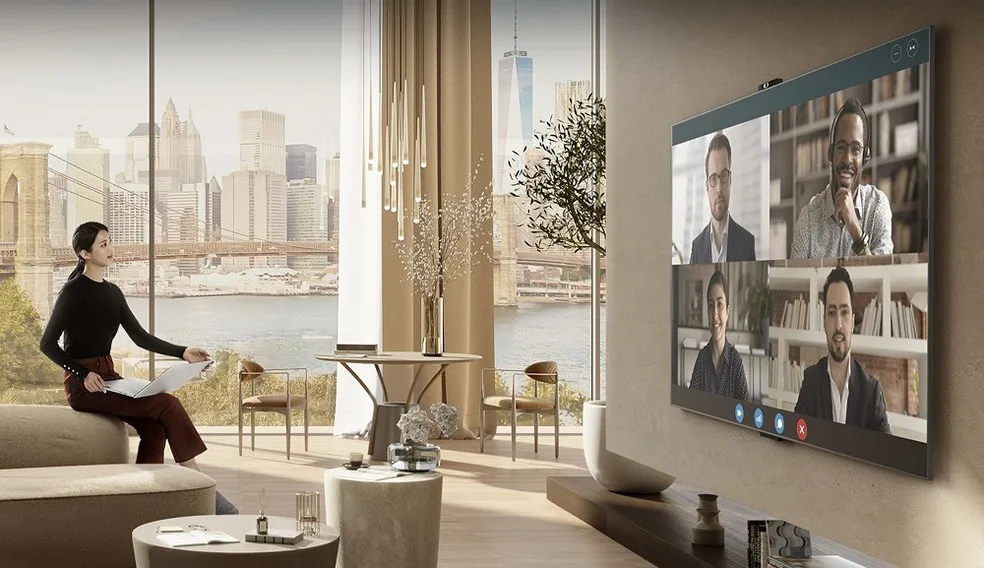
Image source: Web (Bing) / techtudo.com.br (Web image (fair-use with source credit))
Do You Have the Right Webcam?
It's not just about the TV; your webcam itself plays a crucial role in whether this setup can work. Not all webcams are designed for the same kind of integration.
USB Compatibility Matters
The vast majority of webcams connect via USB. The key here is which USB standard your TV or intermediary device supports and if that matches your webcam. USB 2.0 is older and slower, while USB 3.0 (and its successors) offers much higher data transfer speeds.
If your TV only has USB 2.0 ports, it might struggle with high-resolution webcams. More importantly, the TV's operating system needs to have the correct drivers installed or be able to automatically detect and use a generic driver for your webcam. This is a major hurdle for many smart TV platforms.
Resolution and Features
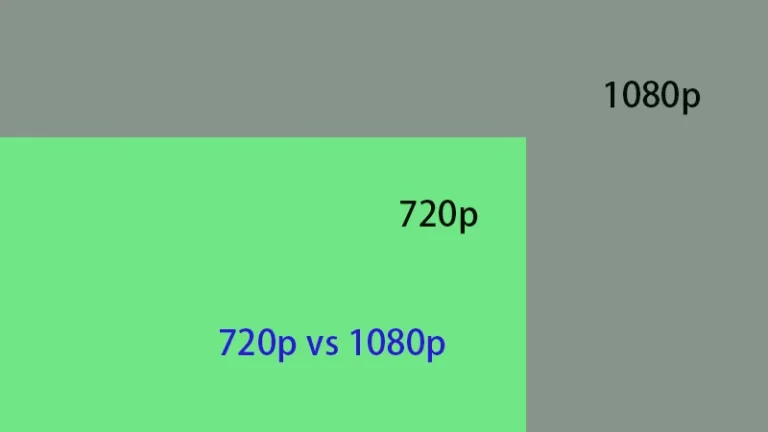
Webcams come with varying resolutions, from 720p to 1080p and even 4K. While a higher resolution means a sharper image, it also demands more bandwidth and processing power. If your TV or external device can't handle the data stream from a high-resolution webcam, you'll get laggy video or a distorted image.
Also, consider if the webcam has a built-in microphone; you'll need that for audio in your video calls.
The External Device Workaround
For most people, connecting a webcam directly to a smart TV is a non-starter. This is where external devices come in handy. They essentially add a layer of computing power and a more robust operating system to your TV, making webcam integration much more feasible.
Streaming Sticks and Boxes
Devices like the Amazon Fire TV Stick, Google Chromecast with Google TV, Roku streaming sticks, or Apple TV are designed to bring app functionality and enhanced connectivity to your television. Many of these devices run operating systems like Android TV, which is more open and generally better at recognizing a wider range of USB peripherals.
These devices often have USB ports (though some might require a separate adapter or hub) and crucially, they can run the actual video conferencing apps. You'll connect the webcam to the streaming device, and then run an app like Zoom or Skype directly from that device to project the call onto your TV screen.
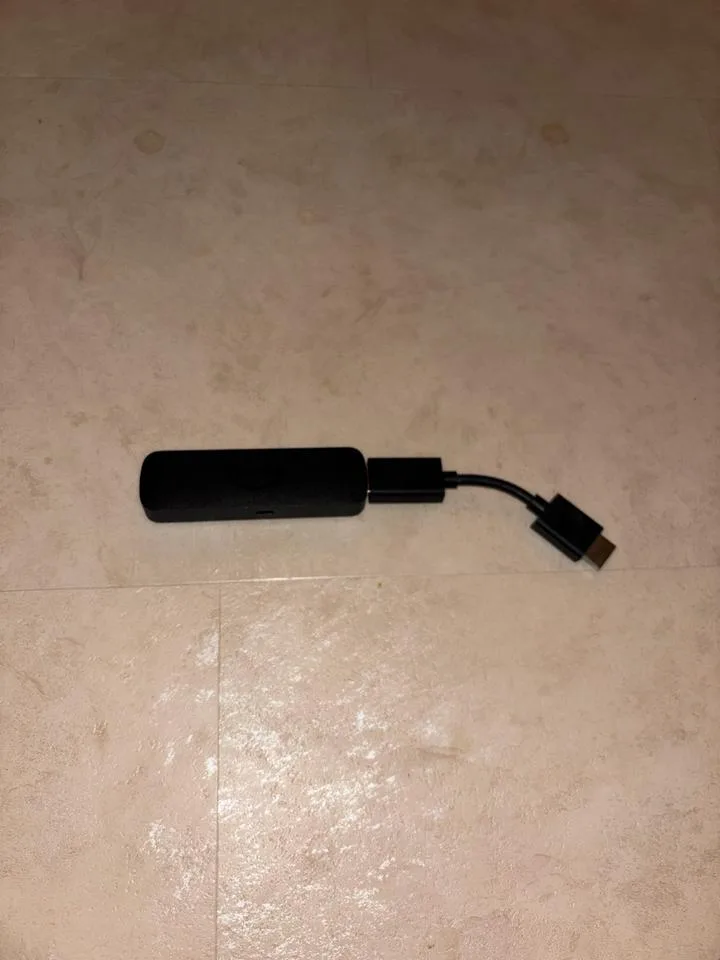
Image source: Bing (Web (fair-use with source credit))
Connecting Everything
The typical setup would look like this: Webcam connects via USB to your streaming stick/box. The streaming stick/box connects to your TV via HDMI. You then launch your chosen video conferencing app on the streaming stick/box, and the call appears on your TV.
This method bypasses the direct compatibility issues between a webcam and a smart TV's native operating system.
Setting Up Your Webcam for Video Calls
Once you've got the right hardware, setting it all up is the next step. This process can vary, but here’s a general breakdown of what you'll likely encounter when trying to get your webcam to work with your smart TV, usually via an external device.
Step-by-Step Connection Guide
- Check Compatibility: First, confirm if your smart TV has USB ports and if your chosen streaming device (like a Fire TV Stick or Google TV) supports webcam input and the specific video conferencing app you want to use. For instance, as of 2026, many Android TV-based devices are more flexible with USB peripherals than proprietary OS systems.
- Connect the Webcam: Plug your USB webcam into an available USB port on your streaming device. If the device doesn't have a direct USB-A port, you might need a USB hub or an adapter that connects via the device's charging port (often USB-C). Ensure the webcam is receiving power.
- Power On Devices: Turn on your smart TV and then power up your streaming device. The TV should display the streaming device's interface.
- App Installation: Navigate to your streaming device's app store. Search for and download the video conferencing application you wish to use (e.g., Zoom, Skype, Google Meet). Note that app availability can differ significantly between platforms like Roku, Fire TV, and Google TV.
- Configure App Settings: Launch the video conferencing app. You'll usually be prompted to grant permissions for the app to access the camera and microphone. Select your connected USB webcam as the camera source and ensure the correct microphone is chosen.
- Test the Connection: Make a test call to yourself or a friend. Check that both video and audio are working clearly. You may need to adjust settings within the app for optimal performance.
Installing Apps on Your TV or Device
This is a critical step, as not all smart TVs or streaming devices support the same apps.
- Android TV/Google TV: These platforms generally have broad app support, including many popular video conferencing services. You can typically install them directly from the Google Play Store on your TV or streaming device.
- Roku: Roku has a growing app selection but might not have every video conferencing app available. Check the Roku Channel Store for compatibility.
- Amazon Fire TV: Similar to Roku, Fire TV has its own app store. Some apps may be available, while others might require sideloading (a more advanced process).
- WebOS (LG) / Tizen (Samsung): These proprietary operating systems can be more restrictive. App availability varies greatly, and direct webcam support is less common, making an external streaming device almost a necessity for these brands if you want to use a webcam.
Common Problems and How to Fix Them
Even with the right hardware, you might run into snags. The most frequent issue is the smart TV or streaming device not recognizing the webcam at all. This usually boils down to a driver incompatibility.
Your TV's operating system might not have the necessary software to communicate with your specific webcam model.
Another common hiccup is when an app doesn't correctly detect the camera or microphone. Some apps are better than others at integrating with external hardware. If you've installed a video conferencing app, but it doesn't see your webcam, double-check the app's permissions and settings within the device's system menu.
Sometimes, simply restarting the streaming device or TV can resolve temporary glitches.
Webcam Not Recognized
If your webcam isn't showing up, the first step is to ensure it's properly plugged in and receiving power. Try a different USB port, or if you're using a hub, try connecting the webcam directly. Check your streaming device's manual to see which USB devices it officially supports.
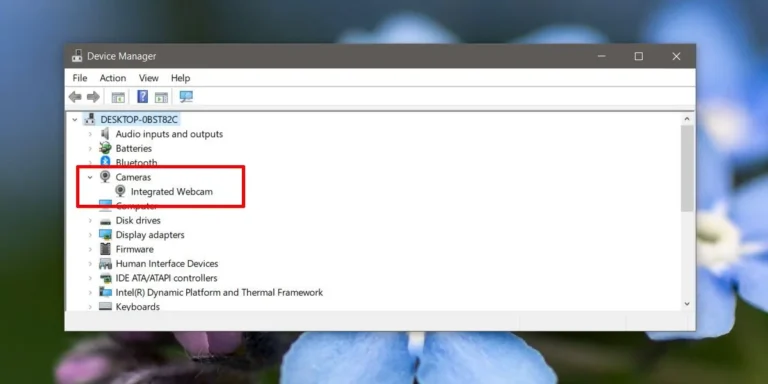
Sometimes, webcams that are UVC (USB Video Class) compliant have a better chance of working without specific drivers.
App Compatibility Issues
Not every video conferencing app is available or fully functional on every smart TV platform or streaming device. For example, a particular app might work fine on Android TV but be missing from the Roku Channel Store. Always verify app availability before you invest in hardware.
If the app is available but not detecting the camera, ensure the app has been granted camera and microphone permissions in your device's system settings.
Poor Video/Audio Quality
Laggy video or muffled audio is a frustrating experience. This often stems from insufficient bandwidth from your internet connection, or the streaming device itself struggling to process the video feed from the webcam. If your Wi-Fi is weak, consider moving your streaming device closer to the router or using an Ethernet cable for a more stable connection.
You might also need to lower the webcam's resolution in its settings if your device can't handle a high-definition stream.
When to Consider Alternatives
Sometimes, despite your best efforts, making a webcam work seamlessly with your smart TV setup just isn't practical or the quality just isn't there. In these cases, there are a couple of straightforward alternatives that might be a better fit.
Using a Laptop or Computer
The most reliable method for video calls on a large screen is often using a laptop or desktop computer. You can simply connect your computer to your smart TV using an HDMI cable. This mirrors your computer's display onto the TV, allowing you to use your computer's webcam and microphone (or a separate, higher-quality one) with the video conferencing app of your choice.
This approach bypasses all smart TV and streaming device compatibility issues. Your computer's operating system is designed to handle a vast array of USB peripherals, so webcam detection is rarely a problem. It's also ideal if you need to share your screen or use more complex features within the video conferencing software.
Smartphone and Tablet Options
If you don't have a laptop handy, your smartphone or tablet can also serve as a bridge. Many modern phones and tablets can connect to a TV via HDMI using an adapter, or they offer screen mirroring capabilities over Wi-Fi. You can then run your video conferencing apps directly on your mobile device and display them on the TV.
This is a good option for casual calls, though it might limit your ability to multitask compared to using a computer.
Quick Guide to Making it Work
So, can you get a webcam working with your smart TV? The answer is often "yes," but it usually involves a specific approach. Here’s a quick way to decide your best path forward.
Your Decision Tree
Does your smart TV have USB ports?
- Yes: Check your TV's manual or manufacturer website for webcam compatibility. If it lists specific supported webcams or general USB device support beyond media playback, try connecting directly. If not, proceed to the next question.
- No: You'll need an external device. Proceed to the next question.
Do you have a compatible external streaming device (e.g., Google TV, Fire TV Stick, Roku)?
- Yes: Can you install the video conferencing app you want to use on that device? If yes, connect your webcam to the streaming device (you might need an adapter) and install the app. This is often the most practical solution.
- No: Consider if purchasing a compatible streaming device is worthwhile.
Do you have a laptop or computer you can connect to your TV via HDMI?
- Yes: This is the simplest, most reliable method. Connect your computer to the TV and run your video conferencing app from there.
- No: Explore smartphone/tablet connection options if available for your devices.
Frequently Asked Questions (FAQs)
Will any USB webcam work with any smart TV?
No, not all USB webcams will work with all smart TVs. Compatibility depends heavily on the smart TV's operating system, its ability to support USB device drivers, and the specific webcam model. Many TVs only support USB drives for media playback.
Can I use a webcam with a Smart TV without an external device?
It's possible but uncommon. Only smart TVs specifically designed with built-in camera support or those running highly adaptable operating systems like Android TV, and that clearly state webcam compatibility in their specifications, might work with a direct connection. Most users find an external streaming device is necessary.
What's the best way to connect a webcam for video calls on my TV?
For most users, the easiest and most reliable method is to connect the webcam to a separate streaming device (like a Google TV or Fire TV Stick) that can run video conferencing apps. Alternatively, connecting a laptop or computer to your TV via HDMI is a foolproof solution.
Do I need to install drivers for a webcam on a smart TV?
Generally, smart TV operating systems do not support the installation of custom drivers like you would on a computer. For a webcam to work, it typically needs to be plug-and-play, meaning it uses a generic driver that the TV's OS can recognize, or it needs to be connected to an external device that handles driver management.
Can I use my TV's built-in camera for video calls?
Most modern smart TVs do not come with built-in cameras, as this feature was largely phased out due to privacy concerns and the rise of external streaming devices. Some earlier models or specialized professional displays might have had cameras, but it's rare today.