Why Is My Webcam Not Detected by Windows?
When your webcam suddenly stops working, it's more than just an inconvenience; it can disrupt your work, studies, and connections with loved ones. You're likely wondering, "Why is my webcam not detected by Windows?" This issue often stems from simple oversights or software glitches that can be fixed with a bit of focused troubleshooting.
Our research indicates that the most common culprits range from a loose connection to outdated drivers or even privacy settings blocking access. Understanding these potential issues is the first step toward getting your camera back online. We'll walk you through the most effective methods, guided by information from official Microsoft documentation and manufacturer support resources.
Why Is My Webcam Not Detected by Windows?
Your webcam isn't detected by Windows due to issues with its connection, drivers, software settings, or internal hardware. These problems prevent the operating system from recognizing the USB device. This often happens after Windows updates or when software conflicts arise.
Quick Check: Is Your Webcam Just Unplugged or Off?
Before diving into complex solutions, let's cover the absolute basics. It sounds obvious, but sometimes the simplest explanation is the right one. A webcam relies on a physical connection to your computer, usually via a USB port.
If that connection is loose, interrupted, or if the webcam itself has a physical on/off switch that's been toggled, Windows won't see it.
- Check the USB Cable: Ensure the USB cable is firmly plugged into both the webcam and your computer. If it's a detachable cable, try unplugging and reinserting it at both ends.
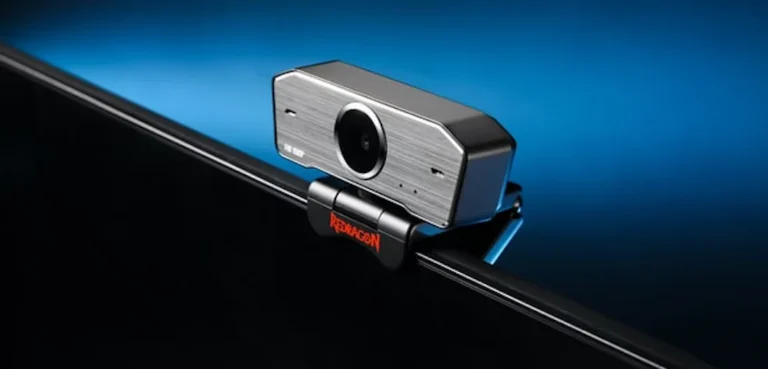
- Look for a Physical Switch: Some webcams, especially higher-end models or those with privacy shutters, have a physical switch or button to disable them. Make sure this is in the "on" or "open" position.
- Test Another USB Port: The USB port itself could be the issue. Try plugging your webcam into a different USB port on your computer. If you're using a USB hub, try plugging the webcam directly into your computer to rule out the hub as the problem.
- Inspect the Cable: Briefly check the USB cable for any visible damage, like cuts or kinks, which could indicate an internal break.
If you've gone through these physical checks and your webcam is still not detected, we'll move on to the software side of things.
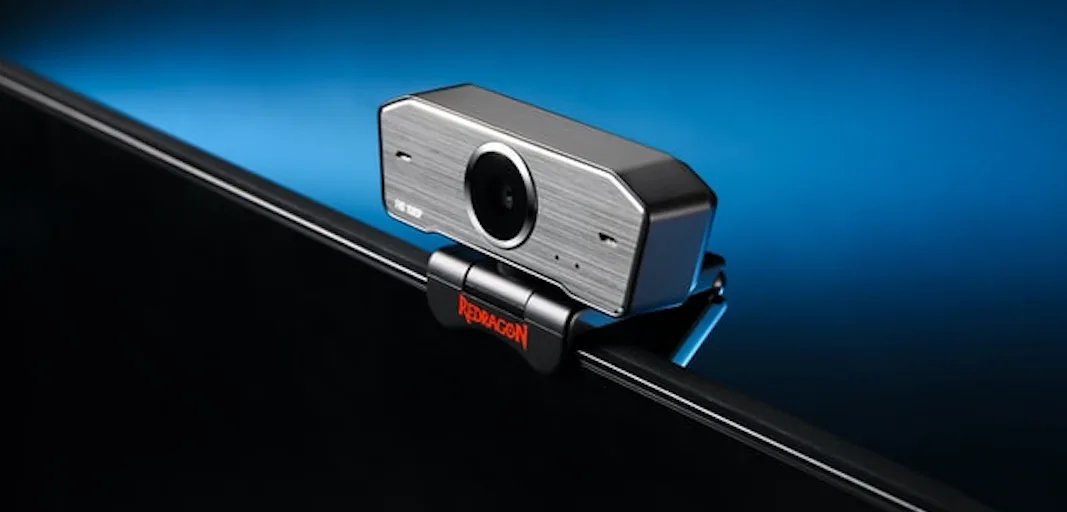
Image source: Web (Bing) / fineshare.com (Web image (fair-use with source credit))
Troubleshooting Your Webcam in Windows: A Step-by-Step Workflow
When your webcam refuses to show up, it’s usually a software or driver issue. Windows manages all connected hardware through its Device Manager. If a device isn't properly installed or recognized, it'll either be missing from this list or show up with an error.
This troubleshooting flow helps you systematically identify and fix the problem.
Step 1: Basic Physical Checks
We already covered this in the previous section, but it's worth reiterating because it's the most common fix. Ensure your webcam is physically connected securely via its USB cable to an active USB port on your computer. Double-check for any physical on/off switches on the webcam itself.
If you're using a laptop, confirm the built-in camera hasn't been accidentally disabled via a function key (often Fn + F10 or similar, check your laptop's manual).
Step 2: Device Manager Detective Work
Device Manager is your central hub for seeing what hardware Windows recognizes and how it's functioning. This is where we'll start diagnosing the webcam issue.
- Open Device Manager: The quickest way is to press
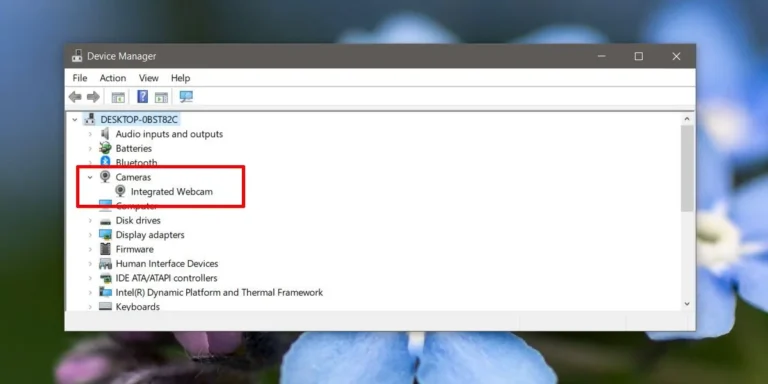
Windows Key + Xand select "Device Manager" from the menu. Alternatively, search for "Device Manager" in the Windows search bar. - Look for Your Webcam: In the Device Manager window, scan the list of hardware categories. Your webcam might appear under "Cameras," "Imaging devices," or sometimes even "Other devices" if Windows can't properly identify it.
- Check for Errors:
- Unknown Device: If you see an "Unknown device" with a yellow exclamation mark icon, Windows doesn't recognize the hardware at all. This often points to a driver problem.
- Disabled Device: If you see your webcam listed but it has a small down arrow icon, it's been disabled. Right-click on it and select "Enable device."
- Other Errors: Any other error icon (like another yellow exclamation mark) indicates a specific problem that needs addressing.
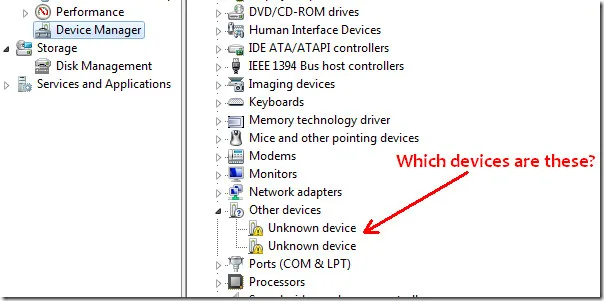
Image source: Web (Bing) / addictivetips.com (Web image (fair-use with source credit))
If your webcam isn't listed at all, or if it shows up as an unknown device, the next steps will focus on getting Windows to recognize and communicate with it properly, usually through its drivers.
Step 3: Driver Deep Dive: Update, Reinstall, or Rollback
Device drivers are small pieces of software that allow Windows to communicate with your hardware, including your webcam. Outdated, corrupted, or missing drivers are very common reasons why a webcam might not be detected.
Update the Driver:
- In Device Manager, right-click on your webcam (or the "Unknown device" you suspect is your webcam).
- Select "Update driver."
- Choose "Search automatically for drivers." Windows will search your computer and the internet for the latest driver.
- If a new driver is found, follow the on-screen instructions to install it.
Reinstall the Driver: If updating doesn't work, or if you suspect the current driver is corrupted, a clean reinstall can help.
- In Device Manager, right-click your webcam and select "Uninstall device."
- If prompted, check the box that says "Delete the driver software for this device." This ensures a fresh installation.
- Click "Uninstall."
- Restart your computer. Windows will attempt to automatically reinstall a generic driver upon startup, or you can then try updating the driver again through Device Manager.
Roll Back the Driver: Sometimes, a recent driver update can cause issues. If your webcam stopped working after a driver update, you can try reverting to a previous version.
- In Device Manager, double-click your webcam to open its Properties.
- Go to the "Driver" tab.
- If the "Roll Back Driver" button is available, click it and follow the prompts.
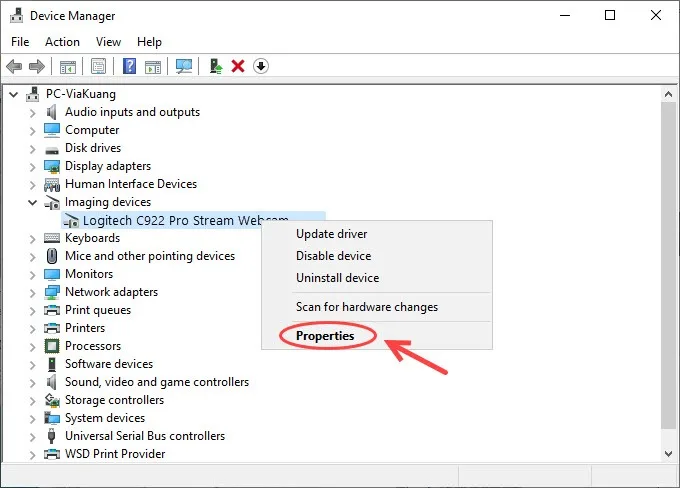
Image source: Web (Bing) / drivereasy.com (Web image (fair-use with source credit))
If Windows can't find a driver automatically, you might need to download the latest driver directly from your webcam manufacturer's official website. Look for the support or downloads section and search for your specific webcam model. Always download drivers from the manufacturer's site to avoid malware.
Step 4: Application and Privacy Settings Hurdles
Even if your webcam is detected by Windows and has a working driver, specific applications or your Windows privacy settings might be preventing it from functioning. This is a security feature designed to give you control over which apps can access your camera.
Check Application Permissions:
- Go to Windows Settings (Windows Key + I).
- Navigate to "Privacy" (or "Privacy & security" on Windows 11).
- Scroll down to "App permissions" and select "Camera."
- Ensure that "Camera access" is turned on.
- Further down, under "Let apps access your camera," make sure the specific applications you're trying to use (like Zoom, Skype, or the Camera app) are allowed to access it.
Test with the Built-in Camera App: The easiest way to check if the webcam is generally functional (and not just blocked by one app) is to use the built-in Windows Camera app.
- Search for "Camera" in the Windows search bar and open it.
- If the Camera app can detect and display an image from your webcam, the problem is likely with the specific application you were trying to use previously, not with the webcam detection itself. You'll need to check that application's settings for camera access.
Sometimes, software installed by the webcam manufacturer might also have its own privacy controls or settings that could be blocking the camera. If you installed such software, check its preferences.
Step 5: Testing Across Different Ports and Software
If the previous steps haven't resolved the detection issue, it's time to broaden our testing scope. This involves isolating the problem by trying different configurations and ruling out software conflicts.
Try Different USB Ports Again: We mentioned this in the first step, but it bears repeating. If you only tried one alternative port, try a few more. Pay attention to whether you're using USB 2.0 or USB 3.0 ports (USB 3.0 ports are usually blue). Sometimes, a webcam might have better compatibility with one type over the other, or a specific port might be malfunctioning.
Test on Another Computer: This is a crucial step for determining if the webcam itself is faulty. If you have access to another computer, plug your webcam into it and see if it's detected.
- If the webcam works on another computer, the problem almost certainly lies with your original Windows installation, its drivers, or its hardware configuration.
- If the webcam still isn't detected on a different computer, the webcam itself or its USB cable is likely damaged or defective.
Check for Conflicting Software: Occasionally, other software running in the background might interfere with webcam detection. This could include older webcam utility software, certain video conferencing tools that are trying to run automatically, or even some security software. Try temporarily closing unnecessary background applications and then re-checking Device Manager.
If none of these steps restore functionality, it might be time to investigate more in-depth hardware issues or consider replacing the webcam, especially if it fails to work on a second computer.
Common Webcam Detection Mistakes to Sidestep
Many users run into the same pitfalls when trying to fix a webcam that isn't detected. Recognizing these common errors can save you a lot of frustration and time. They often involve skipping crucial initial steps or misinterpreting what the troubleshooting tools are telling you.
- Ignoring Basic Checks: The most frequent mistake is jumping straight to complex driver updates or system settings without first confirming the webcam is properly plugged in and switched on. A loose USB cable or an accidentally toggled physical switch is a simple fix that’s often overlooked. Always start with the physical connection.
- Assuming the Worst: People often assume their webcam is broken when the issue is simply a disabled setting in Windows or a specific app. Before concluding hardware failure, ensure camera access is enabled in Privacy settings and test the camera with the basic Windows Camera app. If those work, the webcam hardware is likely fine.
- Installing Drivers from Unofficial Sources: Downloading drivers from third-party websites, especially those that aren't the official manufacturer's site, is a major risk. These files can contain malware or be incompatible, worsening the problem or even damaging your system. Always get drivers directly from the webcam maker or through Windows Update.
- Overlooking USB Port Issues: Sometimes, a specific USB port can become faulty. Users might try one alternative port and, if it doesn't work, assume the port isn't the issue. It's wise to test several different ports, including those directly on the computer's motherboard if using a desktop, to rule out individual port failures.
- Not Restarting After Changes: Many driver updates or uninstalls require a computer restart to take full effect. Failing to restart your PC after making changes in Device Manager can lead you to believe the fix didn't work, when in reality, it just hasn't been fully applied yet.
When to Consider Hardware Issues or Professional Help
If you've meticulously followed the troubleshooting steps and your webcam is still not detected by Windows, it's time to consider that the issue might be with the hardware itself. This is especially true if the webcam fails to work on multiple computers. At this point, it might be more practical to seek professional assistance or consider a replacement rather than continuing to spend time on software fixes that aren't yielding results.
You should start leaning towards hardware as the culprit if:
- The webcam is not detected on a different computer: This is the most definitive sign. If a known-good webcam doesn't work on another PC after basic checks, the webcam hardware or its cable is very likely the problem.
- Device Manager shows persistent unknown device errors even after driver reinstallation: Even after attempting to update, reinstall, or rollback drivers, if the webcam consistently appears as an "Unknown device" or shows hardware errors in Device Manager, it suggests Windows cannot establish a proper communication link, which can be a hardware fault.
- The webcam has visible physical damage: Cracks, bent connectors, or frayed cables are clear indicators of physical damage that could prevent detection.
If your webcam is still under warranty, contacting the manufacturer for support or a replacement should be your next step. They can often provide more specific troubleshooting for their models or guide you through the RMA (Return Merchandise Authorization) process. If the webcam is out of warranty or if you're uncomfortable with hardware diagnostics, seeking help from a local computer repair shop is a good option.
They have the tools and expertise to diagnose hardware failures more accurately.
Frequently Asked Questions
Why does my webcam suddenly stop working?
Sudden webcam failures often result from recent Windows updates that may conflict with existing drivers, driver corruption, accidental changes to privacy settings, or physical connection issues. A restart can sometimes resolve temporary software glitches.
Can a USB port be the reason my webcam isn't detected?
Yes, a faulty USB port can absolutely prevent your webcam from being detected. Try plugging the webcam into a different USB port, ideally one directly on the motherboard of a desktop computer, to rule out port-specific issues.
How do I know if my webcam driver is the problem?
If your webcam appears as an "Unknown device" in Device Manager, or if it has a yellow exclamation mark icon, its driver is likely missing, corrupted, or outdated. Updating, reinstalling, or rolling back the driver are key steps to fixing this.
Should I update my webcam driver if it's working fine?
Generally, only update drivers if you are experiencing issues or if the manufacturer strongly recommends it for security or significant feature improvements. Unnecessary driver updates can sometimes introduce new problems.
What's the difference between a webcam driver and webcam software?
A driver is essential software that allows Windows to communicate with the webcam hardware at a fundamental level. Webcam software, on the other hand, is an application you might install from the manufacturer that offers extra features like special effects, advanced settings, or recording capabilities.