Do Webcams Have Built-In Microphones?
You're setting up for a video call, maybe to stream, or just to chat with friends, and you realize you’ve got video covered, but what about sound? The question "Do Webcams Have Built-In Microphones?" pops into your head, and you need a straight answer. It's a common point of confusion, and understanding it means you won't end up with a device that’s only half the solution you need.
Most webcams do come equipped with an integrated microphone, making them an all-in-one package for your visual and auditory needs. Manufacturer specifications generally confirm this. For devices designed for general consumer use, this feature is almost standard, aligning with common usability expectations and often adhering to basic audio input standards for communication software.
Do Webcams Have Built-In Microphones?
Yes, most webcams include built-in microphones. This is a standard feature for convenience. However, not all models have them.
Why It's Not a Simple Yes or No
It’s easy to assume every webcam has a microphone built right in, but that’s not always the case. Think about how many different kinds of webcams exist, from tiny, super-basic models for occasional use to high-end professional rigs. Each is built with a specific user and purpose in mind.
This variety means that while the majority of consumer-grade webcams include an integrated microphone, there are exceptions. You might find specialized webcams or older models that omit this feature to focus on other aspects. They might cater to users who prefer to use separate, dedicated audio equipment.
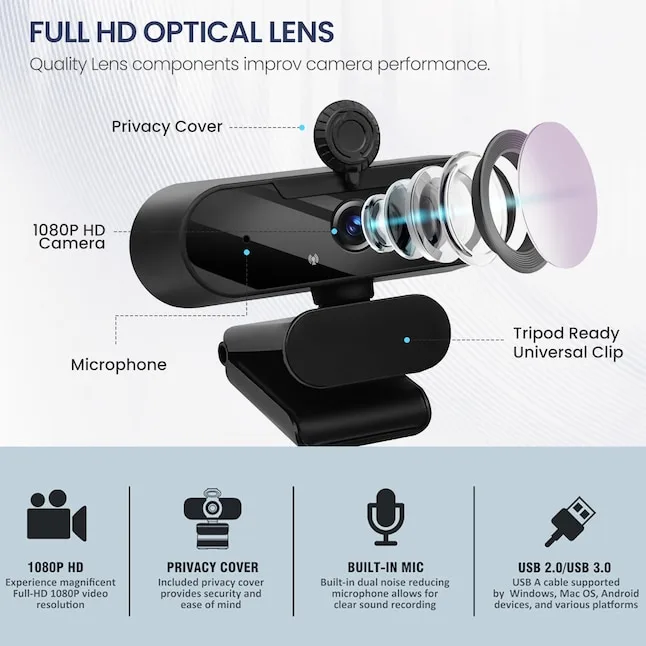
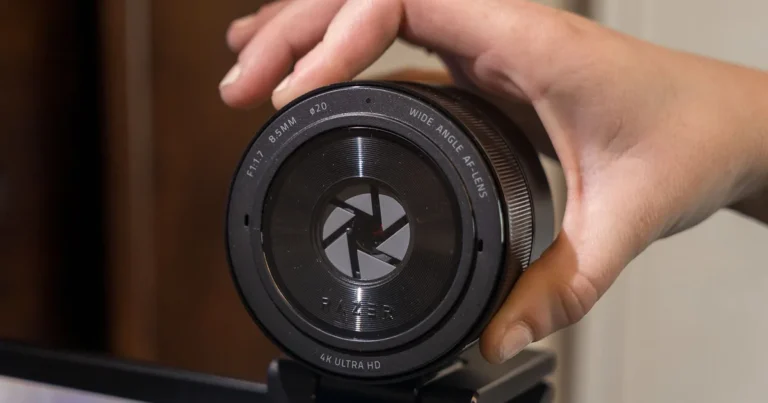
Image source: Web (Bing) / lowes.com (Web image (fair-use with source credit))
The Convenience Factor: Why Most Do
For most users, especially those jumping into video calls for work, school, or personal connections, a webcam with a built-in microphone is a huge plus. It’s about simplifying your setup. You plug in one USB cable, and suddenly you have both video and audio ready.
This all-in-one approach means fewer devices to manage, less clutter on your desk, and less troubleshooting to get your system working. It’s the default expectation for most people because it makes getting started with online communication incredibly straightforward. Manufacturer specifications consistently highlight this feature for consumer models.
The Exceptions: When They Might Not
While built-in mics are common, you'll run into situations where a webcam doesn't include one. These exceptions often fall into a couple of categories. Professional-grade webcams, designed for serious streamers or content creators, might skip the built-in mic.
This is because these users often want absolute control over their audio. They opt for dedicated boom mics, lavalier mics, or studio microphones for superior quality and flexibility.
Very basic or older webcam models might also lack this feature as a cost-saving measure. If a manufacturer is trying to hit an extremely low price point, cutting out the microphone can reduce the bill of materials. When you're looking at product specs, always confirm the microphone is listed.
How to Tell If Your Webcam Has a Microphone
Figuring out if your webcam has a mic is pretty straightforward. You don't need to be a tech guru to do it. The most reliable method is checking the product's specifications.
If you have the box, look for a section labeled "Features" or "Specifications." It will clearly state whether it includes a built-in microphone.
If you're shopping online, these specs are always listed on the product page. You can also sometimes tell by looking at the webcam itself. Often, you'll see small grilles or tiny holes on the front housing of the camera; these are usually where the microphone(s) are located.
Checking Product Specifications Like a Pro
When you're browsing for a webcam, product specifications are your best friend. They're usually found in a dedicated section on the retailer's website or on the manufacturer's official product page. Look for keywords like "Microphone," "Audio Input," or "Built-in Mic." It will typically say "Yes," "Integrated," or list specific microphone features like "dual microphones" or "noise-canceling microphones."
If the specifications are vague or missing, it's a red flag. In our research, we've found that reputable brands are clear about this feature. For example, a common specification might read: "Microphone: Built-in omnidirectional microphone." If you can't find any mention of a microphone, assume it doesn't have one, or contact the manufacturer for clarification.
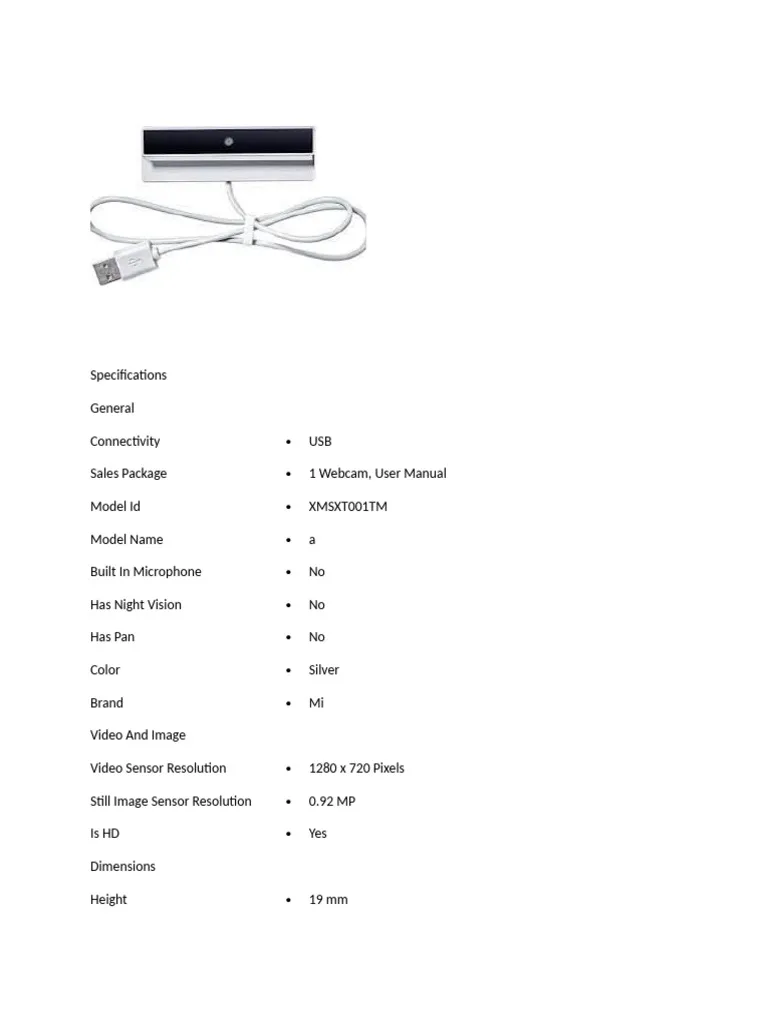
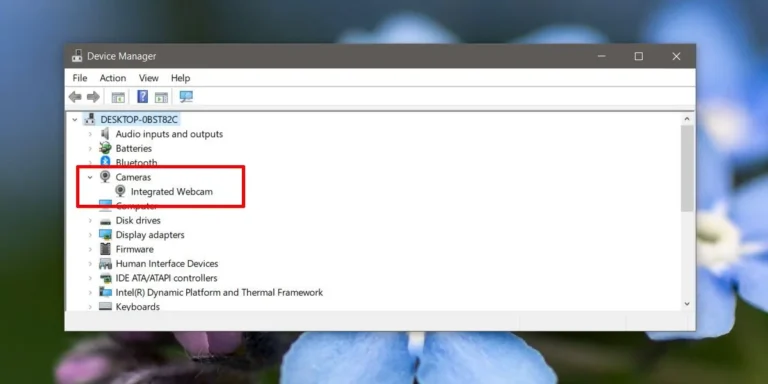
Image source: Web (Bing) / scribd.com (Web image (fair-use with source credit))
What to Look For on the Webcam Itself
Sometimes, you can get a visual clue by looking at the webcam. Many webcams have small grille patterns or tiny holes on their front housing. These are typically where the microphone components are housed to capture sound.
You might see these openings on either side of the camera lens, or sometimes subtly integrated along the top edge.
However, relying solely on visual cues can be tricky. Some manufacturers design their cameras to be very sleek. The microphone openings might be very small or cleverly disguised.
Therefore, while a visual inspection can be a helpful secondary check, always prioritize confirming the specifications to be absolutely sure.
When Your Webcam Lacks a Microphone: Your Audio Options
If you discover your webcam doesn’t have a built-in microphone, or if the quality isn’t up to par, don’t panic. You’ve got several solid alternatives to ensure you can be heard clearly. The simplest solution is often to leverage the audio hardware your computer already has.
If you’re using a laptop, it almost certainly has an integrated microphone designed for basic voice communication. For desktop users, or those who want better sound, there are readily available external options. These range from simple USB microphones to full headset setups.
Using Your Laptop's Built-In Mic
Most laptops come with a microphone built into the chassis, often near the webcam or around the keyboard. This internal microphone is usually sufficient for casual video calls, online classes, or dictation. When you plug in your webcam, your operating system (like Windows or macOS) should automatically prompt you to select your audio input device.
You can then choose your laptop's microphone if your webcam doesn't have one. To check or change this setting, go to your system's sound settings or the specific application's audio preferences (like Zoom or Microsoft Teams). It’s a quick and easy way to get audio without buying anything extra.
Stepping Up with External Microphones or Headsets
For a significant upgrade in audio quality, or if you need a microphone specifically for your non-mic webcam, external solutions are the way to go. USB microphones are incredibly popular for their plug-and-play simplicity. You just connect them to a USB port, and your computer recognizes them as a new audio input device.
These range from small, portable desktop mics that sit discreetly on your desk to more robust options designed for better sound capture. Another excellent choice is a headset with an integrated microphone. This not only provides clear audio input but also offers privacy and blocks out background noise.
This is ideal for busy environments or when you need to focus.
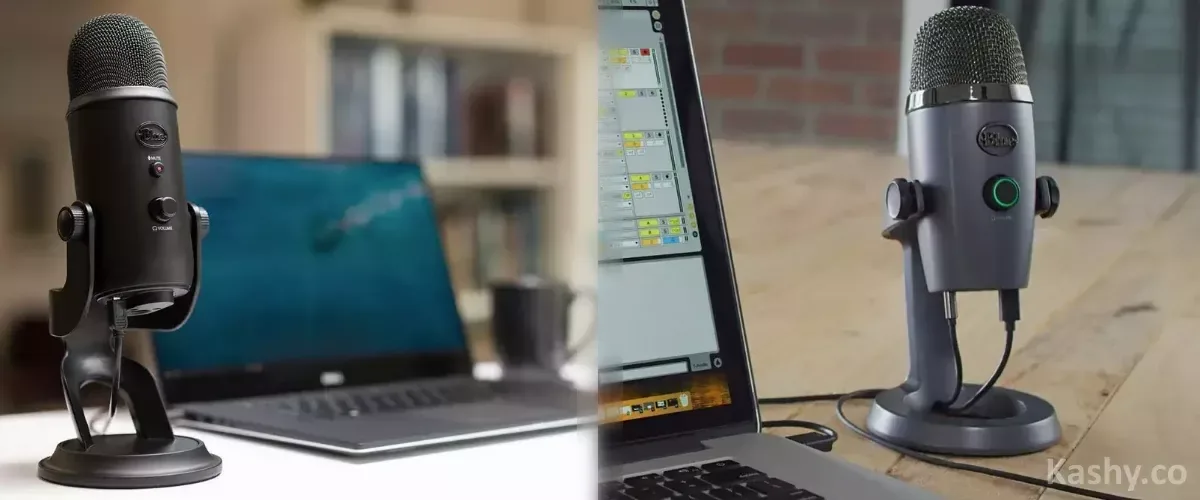
Image source: Web (Bing) / pinterest.com (Web image (fair-use with source credit))
Making the Right Choice: Which Webcam Setup is For You?
Deciding whether you need a webcam with a built-in mic, or if an external audio solution is better, boils down to your primary use case. For most people, a webcam that includes a microphone is perfectly adequate. If your daily routine involves standard video calls for work or catching up with family, a single, integrated device simplifies setup and daily operation.
This is especially true if you value a clean workspace and want to minimize peripherals.
However, if you’re a content creator, streamer, or anyone who needs professional-quality audio, a separate microphone is often a better investment. These dedicated devices provide superior sound clarity, better noise cancellation, and more control over audio levels. In these scenarios, a webcam that doesn't have a built-in mic might even be preferred.
It often means the manufacturer focused resources on the camera sensor or other high-performance video features.
Here’s a quick breakdown to help you decide:
- Best for general video calls, online classes, and casual chats: A webcam with a built-in microphone. This offers convenience, ease of use, and a cost-effective all-in-one solution.
- Best for streamers, podcasters, voice-over artists, or those needing premium audio quality: An external USB microphone or a dedicated audio interface with microphones. These provide professional-grade sound.
- Best for users who want maximum audio control and customizability: A separate microphone system. This allows for advanced mixing, EQ, and sound shaping.
- Best for those on a very tight budget and only needing basic audio: Your laptop's built-in microphone, used in conjunction with any webcam.
Frequently Asked Questions About Webcam Microphones
Do all webcams require drivers for their built-in microphones?
Generally, most modern webcams with built-in microphones are "plug-and-play." Your operating system (Windows, macOS, Linux) will automatically detect the device and install the necessary generic drivers. Some higher-end webcams might offer enhanced features or software requiring specific drivers from the manufacturer's website for full functionality.
Can I use my webcam's microphone and my laptop's microphone at the same time?
You can have both enabled, but most applications only allow you to select one audio input device at a time. You'll need to go into your application’s audio settings (like Zoom, Teams, or Discord) and choose which microphone you want to use for your call or recording. Trying to use both simultaneously usually results in audio conflicts or echoes.
How do I know if my webcam's microphone is working?
You can test your webcam's microphone through your operating system's sound settings. Go to your system's audio input settings, and you should see a level meter that reacts when you speak. Alternatively, open a voice recording application or a video conferencing tool and check its audio input levels.
If the meter moves when you talk, the microphone is likely working.
What is the typical audio quality of a built-in webcam microphone?
The audio quality of built-in webcam microphones varies significantly by model and price point. Basic models might offer passable voice clarity for casual conversations. More advanced webcams might feature multiple microphones for better noise cancellation and clearer sound.
However, they are rarely on par with dedicated microphones designed for professional audio capture.
Can I disable my webcam's built-in microphone if I'm not using it?
Yes, you can usually disable a webcam's built-in microphone. The easiest way is typically within your operating system's sound settings, where you can disable or uninstall the microphone device associated with your webcam. Some webcam software also provides an option to toggle the microphone on or off.