How to Update DJI Osmo Action 4 Firmware?
The DJI Osmo Action 4 is a fantastic tool for capturing your adventures, but like any piece of tech, it benefits from staying up-to-date. Knowing how to update DJI Osmo Action 4 firmware is key to ensuring peak performance and accessing the latest features DJI rolls out. These updates are designed to refine your camera's operation and fix any minor hiccups that might arise.
Firmware updates are small software packages that run directly on your camera, much like apps on your phone. Manufacturer specifications indicate that recent firmware versions often improve battery management and enhance image processing algorithms, meaning your footage can look even better. Let's walk through the straightforward ways you can keep your Osmo Action 4's software current.
How to Update DJI Osmo Action 4 Firmware?
Updating your DJI Osmo Action 4 firmware is typically done through either the DJI Mimo app or by connecting the camera to a computer. Both methods ensure your device receives the latest software enhancements. Follow DJI's official guidance for reliable results.
Option 1: Update Using the DJI Mimo App
The DJI Mimo app is often the most user-friendly way to manage your Osmo Action 4, and that includes firmware updates. This method leverages your smartphone or tablet to download and transfer the necessary files wirelessly. It’s the go-to for many users who regularly connect their camera to their mobile device for footage transfer or remote control.
Connecting Your Osmo Action 4 to Mimo
Before you can update, you need to establish a connection between your Osmo Action 4 and the DJI Mimo app. First, power on your camera. Then, open the Mimo app on your iOS or Android device.
The app will usually prompt you to connect your camera if it's not already paired. This connection typically uses a combination of Bluetooth for initial pairing and Wi-Fi for faster data transfer, including firmware. Ensure your phone's Bluetooth and Wi-Fi are enabled.
Follow the on-screen instructions within the Mimo app to complete the pairing process, which usually involves selecting your camera from a list and confirming a code if prompted. Once successfully connected, you'll often see a live feed from your camera within the app.
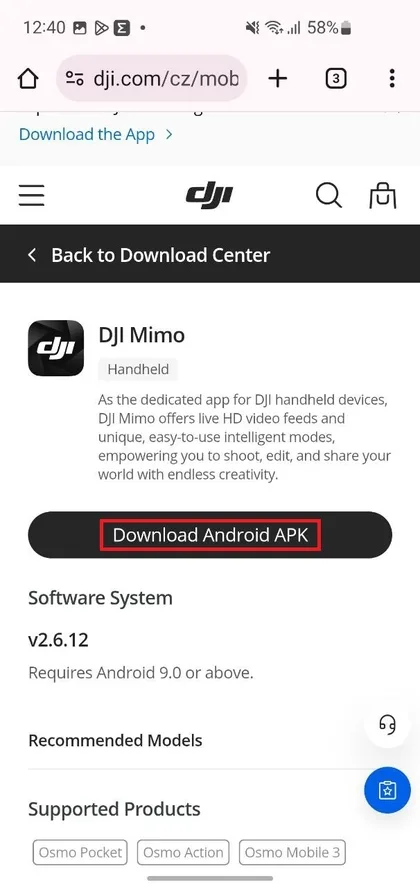
Image source: Web (Bing) / manualslib.com (Web image (fair-use with source credit))
Finding and Downloading the Firmware
With your camera connected, the DJI Mimo app is designed to automatically check for available firmware updates. If a new version is ready, you'll typically see a prominent notification within the app, often in the device settings or information section. Tap on this notification to view the details of the update.
The app will show you the current version and the version it's about to install. Before proceeding, confirm that your smartphone or tablet is connected to a stable Wi-Fi network, as firmware files can be quite large and using mobile data could incur charges or be slower. Tap the "Download" button to start the process; you can usually monitor the download progress directly within the app.
Installing the Update Via App
Once the firmware file has finished downloading to your mobile device, the next step is to install it onto your Osmo Action 4. The Mimo app will guide you through this. After the download is complete, you'll likely see an "Install" or "Update" button.
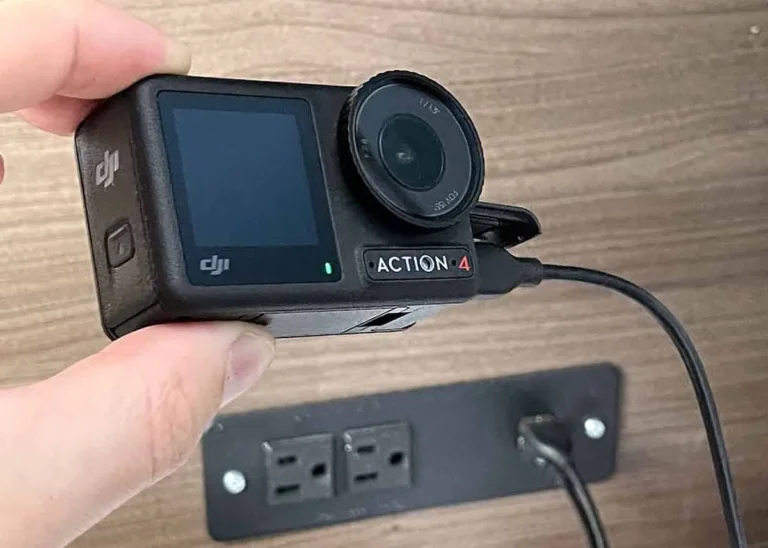
It's crucial to have your Osmo Action 4 powered on and maintaining its connection to your mobile device throughout this entire installation phase. Manufacturer specifications suggest that a full battery charge or keeping the camera plugged in is highly recommended to prevent interruption. Tapping "Install" initiates the transfer and installation onto the camera itself.
The Osmo Action 4 may restart automatically during this process, which is normal. Do not power off the camera or disconnect it from the app while the installation is in progress. The app should provide confirmation once the update is successfully applied.
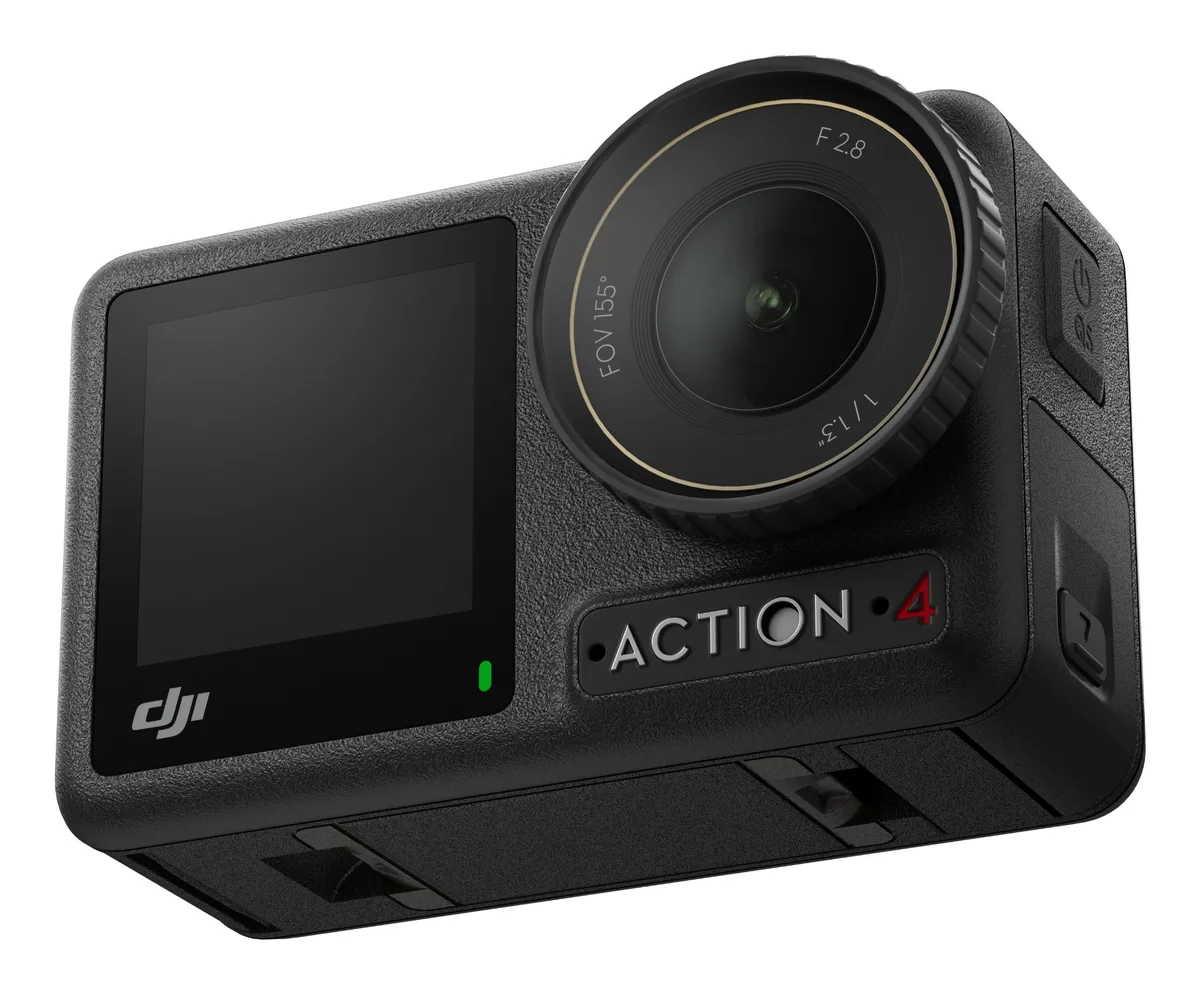
Image source: Web (Bing) / it-supplies.co.uk (Web image (fair-use with source credit))
Option 2: Update Using Your Computer
If you prefer not to use your smartphone or tablet, or if you're experiencing issues with the Mimo app, updating via a computer is a reliable alternative. This method involves downloading the firmware file directly from DJI's official website and transferring it to your camera's microSD card. It’s a more hands-on approach but equally effective.
Downloading Firmware from DJI's Site
To begin, you’ll need to visit the official DJI support website. Navigate to the downloads or support section for the Osmo Action 4. Here, you'll find the latest firmware releases.
Look for the most recent version available and click the download link. The firmware usually comes as a compressed file (like a .zip or .rar), so you'll need to extract its contents after downloading. Ensure you download the correct firmware file specifically for the Osmo Action 4; using a file for a different model could cause serious issues.
As of 2026, DJI’s website provides clear instructions alongside the firmware downloads.
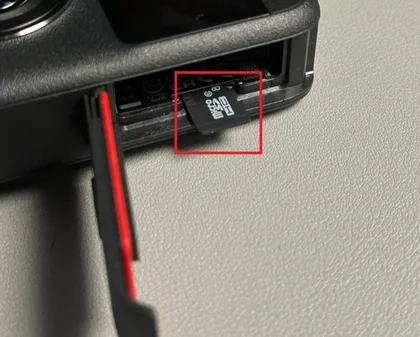
Image source: Web (Bing) / manualslib.com (Web image (fair-use with source credit))
Preparing Your MicroSD Card
For this update method, your Osmo Action 4's microSD card plays a crucial role. Make sure you have a microSD card inserted into your camera, and that it has been formatted. Formatting the card erases all data on it, so it's wise to back up any important footage beforehand.
You'll need a microSD card reader to connect the card to your computer. If your card isn't already formatted, you can usually do this through your camera's settings menu, or by using disk utility tools on your computer. A properly formatted card ensures the firmware file can be read by the camera.
Transferring the Firmware File
After downloading and extracting the firmware file from DJI's website, you'll have a specific file (often with a .bin or similar extension) that needs to be placed on the microSD card. Take the microSD card out of your Osmo Action 4 and insert it into your computer using the card reader. Open the card in your computer's file explorer.
Drag and drop the extracted firmware file directly onto the root directory of the microSD card. The "root directory" is the main storage space of the card, not inside any folders. Ensure the file is copied completely.
Safely eject the microSD card from your computer to prevent data corruption.
Running the Update from the Camera
With the firmware file correctly placed on the microSD card, reinsert the card back into your powered-off Osmo Action 4. Now, turn on your camera. The Osmo Action 4 is designed to detect the firmware file on the microSD card automatically when it boots up.
You should see an on-screen indicator on the camera’s display showing that it’s starting the firmware update process. This typically involves a progress bar. It's critical to allow this process to complete without interruption.
Do not remove the microSD card, press any buttons unnecessarily, or power off the camera. The camera will likely restart itself once the firmware has been successfully installed. You can then check the camera's settings menu to confirm that the firmware version has been updated.
Common Mistakes and How to Avoid Them
When updating your DJI Osmo Action 4, a few common slip-ups can cause frustration or even interrupt the process. Being aware of these potential pitfalls can save you time and ensure a smooth update experience. Following best practices is key to keeping your camera's software running as it should.
Battery Issues During Update
One of the most critical mistakes is attempting a firmware update with a low battery. Manufacturer specifications strongly recommend ensuring your Osmo Action 4 has at least 50% battery charge, or ideally, keeping it connected to a power source throughout the update. If the camera powers down mid-update, it can leave the firmware in an unstable state, potentially rendering the camera inoperable or requiring more complex recovery steps.
Always check your battery level before you start and opt for the app or computer method that allows for constant power if your battery is low. This is especially true if you're using the wireless app method, where your phone's battery also needs to be sufficient.
Interrupting the Installation
Whether you're using the Mimo app or a computer, forcefully stopping the firmware installation is a significant mistake. This includes turning off the camera, closing the app unexpectedly, or removing the microSD card while the update is in progress. The firmware update process involves writing new data to the camera's internal storage, and interrupting this can corrupt the firmware, leading to performance issues or a bricked camera.
Always wait for the official confirmation from the app or the camera's screen that the update has been completed successfully before powering down or disconnecting anything. Patience is essential here; updates can sometimes take longer than you might expect.
Using the Wrong Firmware File
When updating via a computer, downloading and using the incorrect firmware file is a recipe for disaster. DJI provides specific firmware for each model, and sometimes even for different revisions of a model. Using firmware designed for another DJI camera or an older version of the Osmo Action 4 could lead to compatibility issues, functional errors, or even permanently damage your camera's firmware.
Always double-check the model name and version number on DJI's official download page to ensure you are downloading the correct file. If you’re unsure, it's safer to stick with the Mimo app, which automatically identifies and offers the correct firmware for your connected device.
Frequently Asked Questions About Osmo Action 4 Firmware
How long does a firmware update typically take?
Firmware updates usually take between 5 to 15 minutes to complete. This can vary slightly depending on the size of the update file and the method you're using. Always allow for a bit of extra time to be safe, and avoid interrupting the process.
Do I need an internet connection to update?
Yes, an internet connection is required to download the firmware file. If you are using the DJI Mimo app, your smartphone or tablet needs to be connected to Wi-Fi or a stable mobile data connection. If updating via computer, your computer needs internet access to download the file from DJI's website.
Can I downgrade the firmware if I don't like the new update?
Generally, camera manufacturers do not officially support downgrading firmware. While it might be technically possible in some rare cases, it's not recommended and can lead to instability or void your warranty. It’s usually best to stick with the latest official release from DJI.
What happens if my camera freezes during an update?
If your camera freezes during an update and the screen is unresponsive, do not force it off immediately unless it has been frozen for an unusually long time (e.g., over 30 minutes). In persistent cases, a hard reboot might be necessary, but this carries a risk of corrupting the firmware. Contacting DJI Support is the safest course of action if you suspect an issue.
Should I format my microSD card after updating?
It's not strictly necessary to format your microSD card after every firmware update. However, formatting your card periodically, especially before a major update or if you encounter storage issues, can help keep your storage organized and potentially resolve minor glitches. Remember to back up any important footage before formatting.
Getting the Most Out of Your Updated Osmo Action 4
Keeping your DJI Osmo Action 4 firmware current is a simple yet important part of owning the device. Regular updates mean you’re benefiting from DJI’s ongoing efforts to refine performance, enhance stability, and sometimes even introduce new capabilities to your camera. By following the straightforward steps outlined here, whether you prefer the convenience of the DJI Mimo app or the direct control of a computer, you can ensure your action camera is always running at its best.
This commitment to keeping your gear updated will help you capture those thrilling moments with greater reliability and quality, allowing you to focus on the adventure itself.