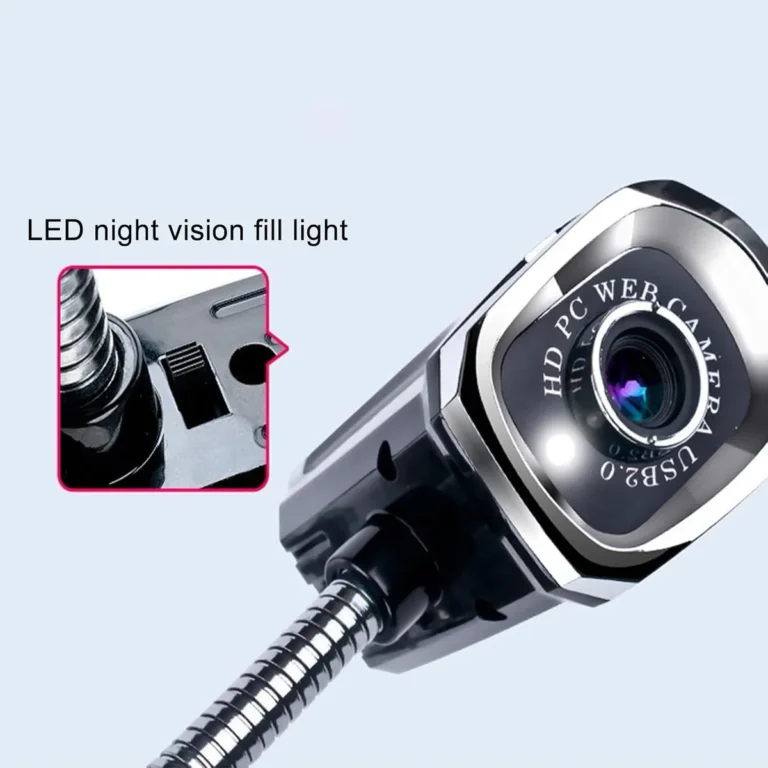
Why Is My Webcam Showing a Black Screen?
Your webcam showing a black screen is a classic tech headache, and figuring out why can feel like a digital detective mission. Most of the time, it’s a solvable glitch, not a hardware failure. We’ve seen this happen across various setups, from integrated laptop cameras to external USB models.
The issue usually stems from a conflict between your operating system, the application you're using, and the webcam itself. Our research indicates that incorrect app permissions, driver issues, or software conflicts are the most common culprits. Manufacturer specifications for most modern webcams require a stable connection and proper driver recognition to function.
Your Webcam's Showing a Black Screen? Let's Fix It!
A black screen on your webcam means the video feed isn't being transmitted to your application. This typically occurs due to software conflicts, incorrect permissions, or driver problems. Your computer isn't receiving a video signal from the camera.
Quick Checks: Is It Plugged In and Powered On?
Before we dive into deeper troubleshooting, let’s cover the absolute basics. These might seem obvious, but they're surprisingly effective at solving common webcam issues.
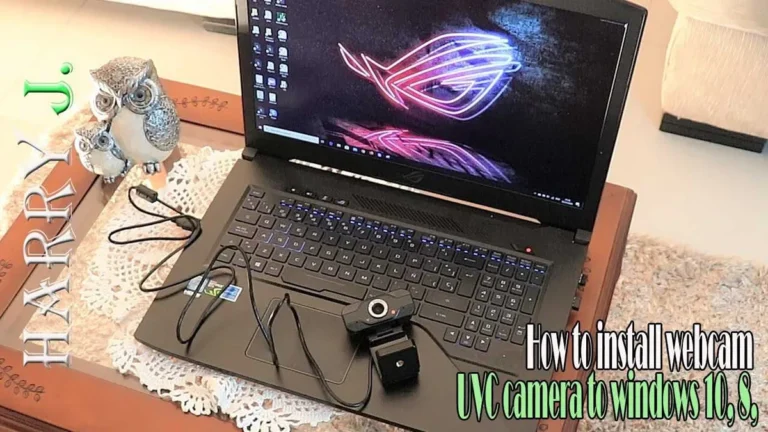
- External Webcam Connection: If you’re using an external webcam, check that the USB cable is securely plugged into both the webcam itself and a USB port on your computer. Sometimes, a slightly loose connection is all it takes.
- Webcam Power Switch/Cover: Some webcams have a physical on/off switch or a small lens cover. Ensure the switch is in the "on" position and that any physical cover has been opened.
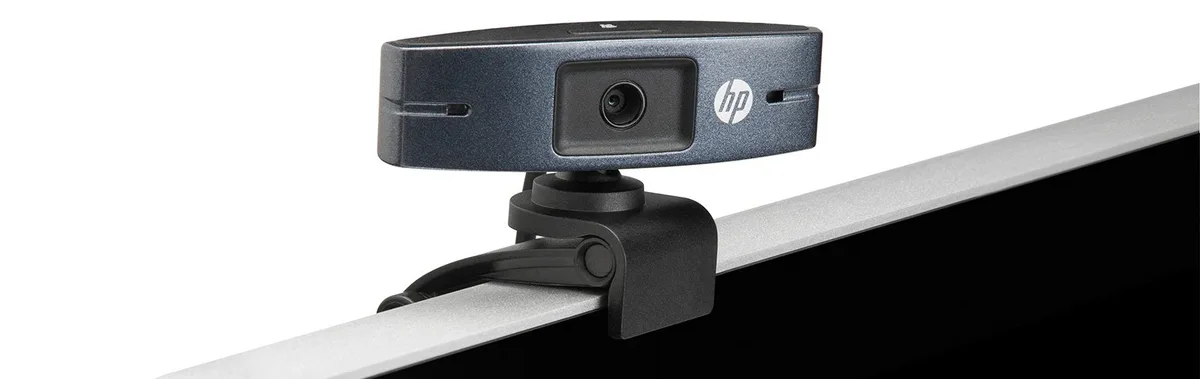
Image source: Bing (Web (fair-use with source credit))
- Computer Reboot: A simple restart can resolve many temporary software glitches that might be preventing your webcam from working. If you haven't already, power down your computer completely and then turn it back on.
Is Another App Hogging Your Camera?
A very common reason for a black webcam screen is that another application is already using the camera. Only one program can typically access your webcam at any given time. If another app has claimed it, your current application will receive a blank feed.
- Close Other Video Applications: This includes any video conferencing software like Zoom, Microsoft Teams, Skype, Discord, or Google Meet. Even browser tabs that might have accessed your camera for a website can cause this. Close them entirely.
- Check Background Processes: Sometimes, applications you don't realize are running can quietly use your camera. Look for icons in your system tray (near the clock on Windows) or menu bar (on macOS) that might indicate a running video or communication app, and close them if found.
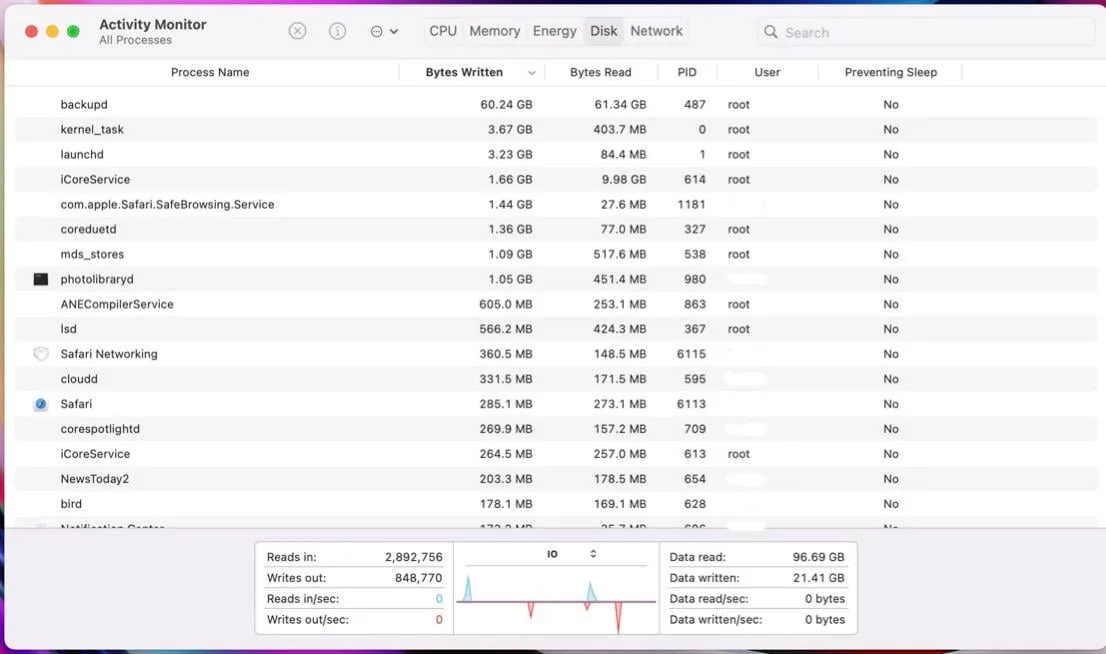
Image source: Web (Bing) / reddit.com (Web image (fair-use with source credit))
If you're unsure which app is using your camera, on Windows, you can sometimes check Task Manager for processes related to camera usage. On macOS, the camera indicator light (a green dot) will illuminate when an app is actively using it.
Checking Your App Permissions for Camera Access
Modern operating systems require applications to ask for and receive permission before they can access your webcam. If the app you're trying to use doesn't have this permission, it will likely show a black screen. This is a privacy feature designed to protect your data.
For Windows Users
To ensure your apps have camera access on Windows:
- Go to Settings by clicking the Start button and selecting the gear icon.
- Click on Privacy & security.
- Under "App permissions," select Camera.
- Make sure "Camera access" is toggled On.
- Then, ensure "Let apps access your camera" is also On.
- Scroll down to "Let apps access your camera" and verify that the specific application you are trying to use is toggled On.
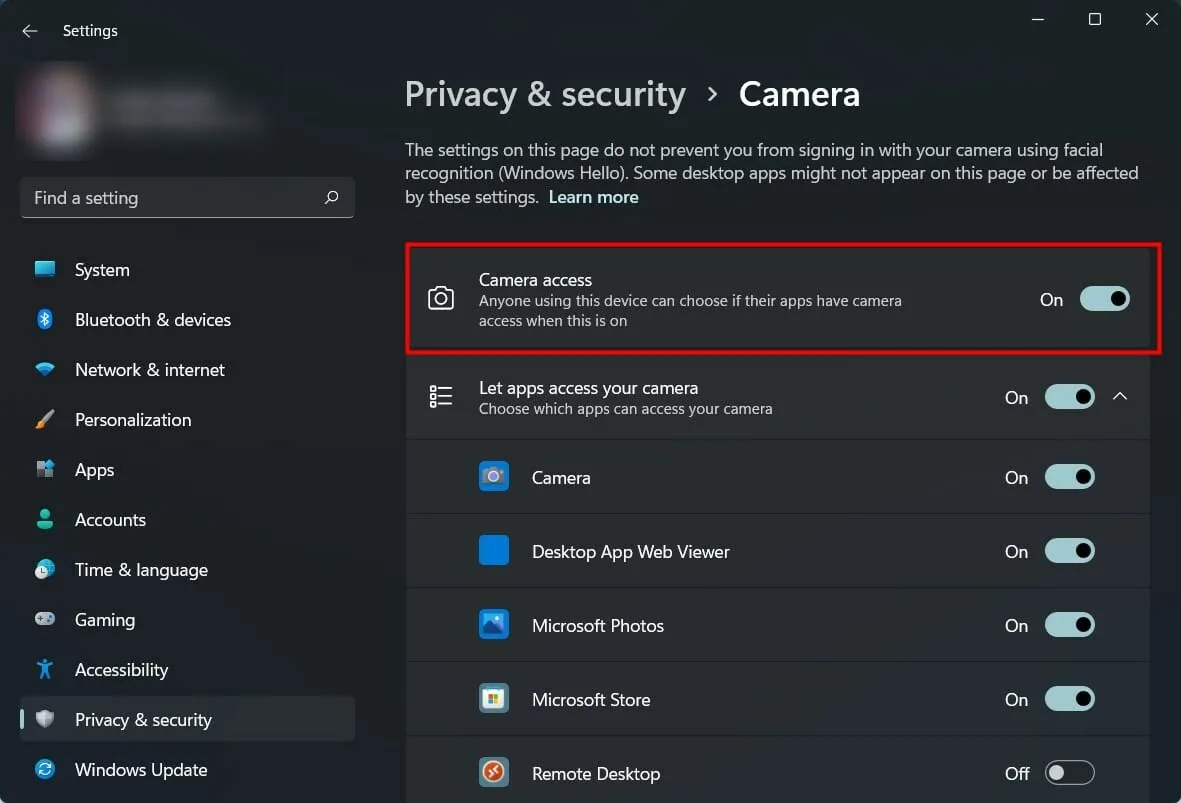
Image source: Web (Bing) / windowsreport.com (Web image (fair-use with source credit))
For macOS Users
To check camera permissions on macOS:
- Open System Settings (or System Preferences on older versions) from the Apple menu.
- Click on Privacy & Security in the sidebar.
- Select Camera from the list.
- Locate the application you're using in the list on the right.
- Ensure the toggle switch next to the app's name is turned On (green). You may need to authenticate with your administrator password.
Webcam Driver Troubles: Update or Reinstall?
Webcam drivers are small software programs that allow your operating system to communicate with your webcam hardware. If these drivers are outdated, corrupted, or missing, your webcam may not function correctly, often resulting in a black screen. Keeping them up-to-date is crucial for performance and compatibility, with many manufacturers recommending driver checks annually.
Updating Drivers in Windows
For Windows users, updating or reinstalling drivers can often resolve black screen issues:
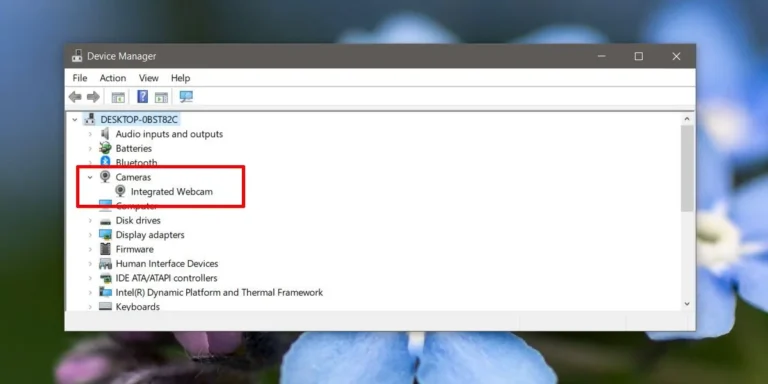
- Right-click the Start button and select Device Manager.
- Expand the Cameras or Imaging devices category.
- Right-click on your webcam's name.
- Select Update driver.
- Choose "Search automatically for drivers." Windows will attempt to find and install the latest driver.
- If that doesn't help, right-click the webcam again and select Uninstall device. Check the box to "Delete the driver software for this device" if prompted.
- Restart your computer. Windows will typically attempt to reinstall a generic driver automatically upon reboot. You may then want to visit the webcam manufacturer's website for the most specific driver.
macOS Driver Considerations
macOS generally handles driver management differently than Windows, with most drivers being integrated into the operating system updates.
- System Updates: The primary way to ensure your webcam drivers are current on a Mac is to keep your macOS up-to-date. Go to System Settings > General > Software Update and install any available updates.
- External Webcam Software: For some external webcams, especially professional or specialized models, the manufacturer might provide dedicated software or firmware updates. Check the support section of the webcam manufacturer's official website for any downloads relevant to your specific model.
Hardware Checks: USB Ports and Testing on Another Computer
If software solutions haven't worked, it's time to look at the physical connection. A faulty USB port or cable can easily cause a black screen.
- Try a Different USB Port: Plug your webcam into a different USB port on your computer. Some ports might have internal issues. If you're using a USB hub, try plugging the webcam directly into the computer to bypass the hub, as hubs can sometimes cause power or connection problems.
- Test on Another Computer: The best way to isolate the problem is to connect your webcam to a completely different computer. If it works fine on another machine, the issue is definitely with your original computer's setup. If it still shows a black screen, the webcam hardware itself may be faulty.
Selecting the Right Camera in Your App Settings
Many applications, especially video conferencing tools, allow you to choose which camera to use if you have multiple cameras connected (like a built-in laptop camera and an external webcam). If the wrong camera is selected, you'll see a black screen from the one you intended to use.
- Locate Camera Settings: Within the application you're using (Zoom, Teams, Skype, etc.), navigate to its settings menu. Look for options related to "Video," "Camera," "Devices," or "Audio & Video."
- Verify Selection: In the camera selection dropdown, ensure your desired webcam is chosen. It might be listed by its brand name (e.g., "Logitech C920") or a generic description. If it's showing a generic "Integrated Camera" and you're using an external one, that's your problem. Select the correct one from the list.
Frequently Asked Questions About Black Webcam Screens
What does it mean if the camera light is on but the screen is black?
If your webcam's indicator light is on but the video feed is black, it usually means the camera is receiving power and is recognized by your system, but it's not successfully capturing or transmitting an image. This often points to software issues like incorrect permissions, driver problems, or conflicts with other applications rather than a complete hardware failure.
Can a browser cause my webcam to show a black screen?
Yes, absolutely. If a browser tab has requested camera access and hasn't properly released it, or if there’s a conflict with browser extensions, it can prevent other applications from using the webcam. Always ensure you close unnecessary browser tabs or windows that might be using your camera.
Is it possible my webcam is broken if it always shows black?
While it's possible, it's not the first conclusion to jump to. Our research shows that persistent black screen issues are more commonly resolved by troubleshooting software, drivers, and permissions. Only after exhausting these software-based solutions, and ideally testing the webcam on another computer, should you consider the webcam hardware itself to be the primary issue.
How often should I update my webcam drivers?
Manufacturer specifications generally suggest updating drivers when new versions are released by the vendor or when you encounter specific performance issues. For most users, keeping your operating system updated will handle driver updates automatically. However, if problems arise, manually checking the webcam manufacturer's website for the latest driver is a good practice, especially for external models.
When It Might Be Time for a New Webcam
If you've gone through all the troubleshooting steps, including testing on another computer, ensuring correct app permissions, updating or reinstalling drivers, and verifying camera selection in your application, and the webcam still displays only a black screen, it's highly probable that the webcam hardware has failed.
This can happen for a few reasons. Older webcams may simply reach the end of their lifespan. Like any electronic device, components can degrade over time or after significant use.
Sometimes, a power surge or physical damage, even if not immediately obvious, can cause internal components to fail. If your webcam is several years old and has been heavily used, or if it experienced a sudden electrical event, a hardware failure becomes a more likely explanation. It might be time to look at newer models that offer better resolution and features anyway.