What Is the Best Frame Rate for a Webcam?
When you're looking to upgrade your video calls or streaming setup, one of the most impactful settings you can adjust is your webcam's frame rate. Understanding what frame rate is and how different options affect your video quality is key to getting a smooth, professional look without overtaxing your system. Asking yourself "What Is the Best Frame Rate for a Webcam?" is the first step to improving your online presence.
This guide will walk you through the common frame rates, what they mean in practice, and how to pick the right one for your specific needs. We'll cover everything from basic video conferencing to high-action gaming streams. According to manufacturer specifications, most webcams today support a range of frame rates, often between 30 and 60 frames per second.
What Is the Best Frame Rate for a Webcam?
The best frame rate for a webcam is typically 30 frames per second (FPS) for general use like video calls. For smoother, faster action in gaming or streaming, 60 FPS is preferable. The ideal choice depends on your computer's power, internet speed, and the content you're creating.
What Frame Rate Means for Your Webcam
Frame rate, measured in frames per second (FPS), essentially dictates how smooth your video looks. It's the number of still images, or frames, your webcam captures and displays each second. A higher FPS means more frames are shown per second, resulting in motion that appears more fluid and natural, similar to how our eyes perceive movement in the real world.
Conversely, a lower FPS can make motion look choppy or even jerky, like a basic flipbook animation. This is a crucial factor in how professional and engaging your video output appears, whether you're in a business meeting or broadcasting live.
Image source: Web (Bing) / ceedo.com (Web image (fair-use with source credit))
Common Webcam Frame Rates Explained
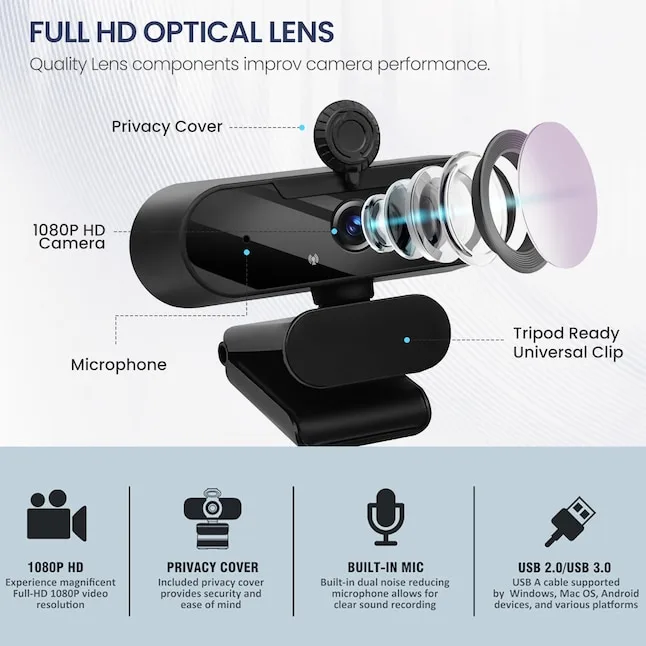
When you look at webcam specifications, you'll almost always see frame rates listed, usually with a resolution. These numbers tell you about the video's quality. For instance, a webcam might be advertised as "1080p at 30 FPS" or "720p at 60 FPS." Understanding these common figures is the first step in making an informed decision for your setup.
As of 2026, these remain the standard metrics for webcam performance.
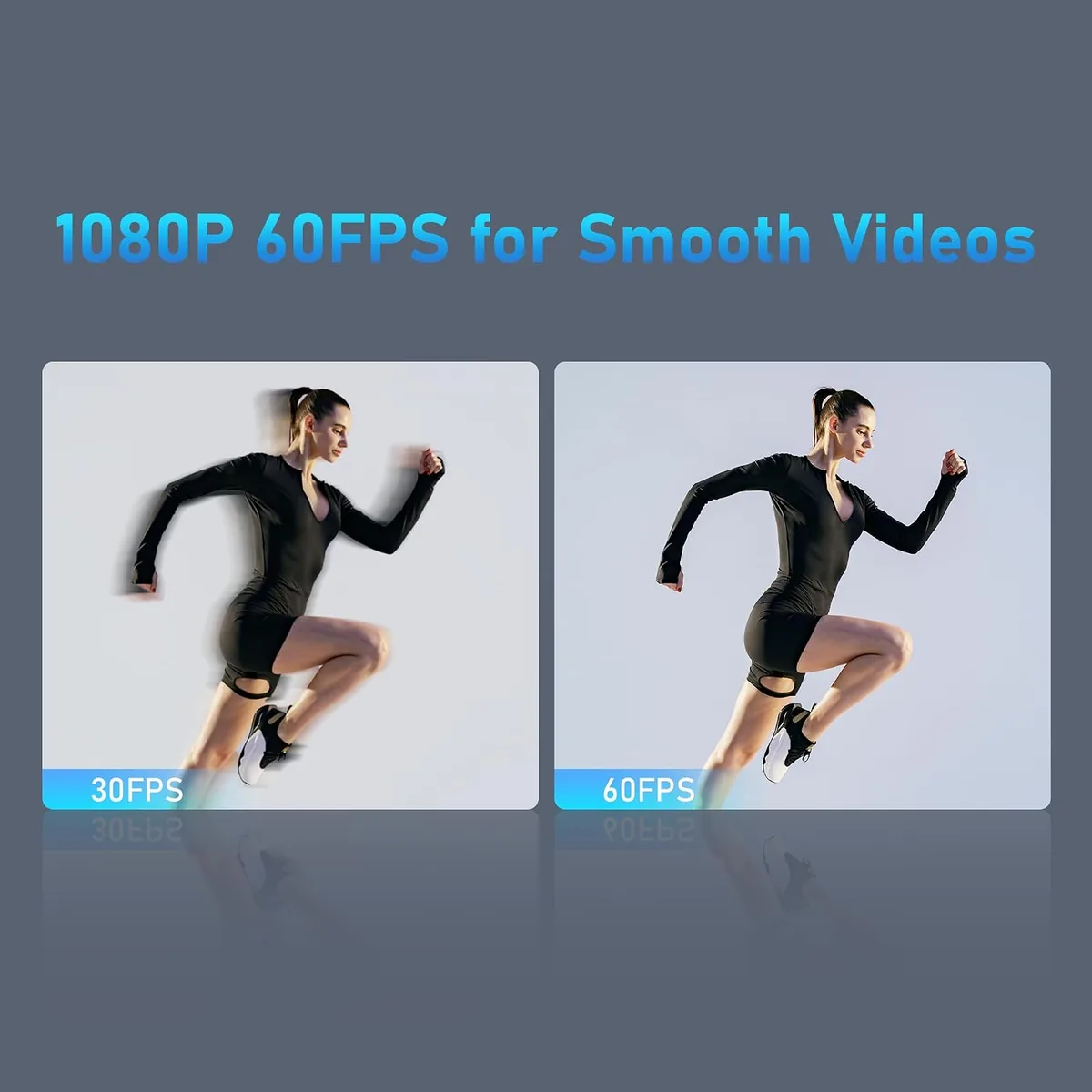
Image source: Web (Bing) / manuals.plus (Web image (fair-use with source credit))
15-24 FPS: The Basics
Frame rates between 15 and 24 FPS are on the lower end of what most modern webcams offer. At 15 FPS, you'll notice that motion appears quite choppy. Think of old, silent films; that's a similar visual effect.
While this rate is often sufficient for very basic video calls where clear audio is more important than buttery-smooth video, it can make fast movements look unnatural and cause significant motion blur. Many older or very budget webcams might default to these lower settings, especially in less-than-ideal lighting conditions where the camera struggles to capture enough light to produce more frames.
30 FPS: The Sweet Spot
Thirty frames per second (30 FPS) is widely considered the standard for a good balance between video smoothness and system demands. For most everyday uses, like video conferencing for work, online classes, or casual chats with friends, 30 FPS provides motion that looks natural and pleasing to the eye. It's the frame rate you'll often see as the default on many popular video conferencing platforms and is well-supported by most computers and internet connections.
This rate offers a good visual experience without requiring excessive processing power or bandwidth, making it a reliable choice for a broad range of users.
60 FPS: Smoother Motion
Stepping up to 60 frames per second (60 FPS) offers a noticeable leap in video fluidity. This higher frame rate means the camera is capturing and displaying twice as many images per second as at 30 FPS. The result is incredibly smooth motion, which is particularly important for fast-paced content like gaming streams or action-heavy video recordings.
If you're watching a game where the action happens quickly, 60 FPS ensures you don't miss any details. Manufacturer specifications often highlight 60 FPS as a premium feature for streamers and content creators.
Choosing Your Ideal Frame Rate: It Depends on What You Do
The "best" frame rate isn't a universal setting; it's entirely dependent on your primary use case and your system's capabilities. What's perfect for a casual video call might be insufficient for a professional gaming stream, and vice-versa. Considering your computer's processing power, your internet upload speed, and the type of content you intend to produce will guide you to the right choice.
A decision-tree approach often works best here: If your priority is smooth gaming, aim high; if it's just talking, 30 FPS is usually enough.
Image source: Web (Bing) / stablediffusionweb.com (Web image (fair-use with source credit))
Best Frame Rate for Everyday Video Calls
For the majority of people using a webcam for typical video conferencing and online meetings, 30 FPS is your best bet. This frame rate offers a visually appealing and natural-looking video feed that makes conversations feel more engaging without being overly demanding on your computer or internet connection. It ensures that participants can see facial expressions and gestures clearly enough for effective communication.
Many video conferencing applications, such as Zoom or Microsoft Teams, are optimized to perform best at 30 FPS, providing a stable and reliable experience. Dropping to 15 FPS might be a last resort only if you experience significant connection issues.
Best Frame Rate for Gaming and Streaming
If your goal is to stream gameplay or create dynamic video content where fast action is key, you’ll want to target 60 FPS. This higher frame rate translates directly into much smoother visual playback, which is critical for viewers trying to follow rapid on-screen movements in games. Streaming at 60 FPS requires a robust internet connection with good upload speeds and a capable computer to handle the increased data processing.
While some professional streamers might even aim for higher, 60 FPS is the widely accepted standard for high-quality, smooth gameplay streaming, offering a significantly better viewer experience than 30 FPS.
Common Frame Rate Mistakes to Avoid
When setting up your webcam, it's easy to fall into a few common traps regarding frame rate. One big mistake is assuming that higher FPS is always better, regardless of your system's capabilities or your actual needs. For example, setting your webcam to 60 FPS for a simple video call on an older laptop with a slow internet connection can actually degrade the overall experience.
It might cause your computer to lag, leading to choppy audio, dropped video, and a generally frustrating experience for everyone involved. It's crucial to match the frame rate to what your hardware and internet can comfortably support.
Another frequent error is neglecting your lighting. Poor lighting conditions force webcams to work harder to capture clear images, which can result in lower frame rates even if you’ve selected a higher setting. Many webcams will automatically adjust their frame rate downwards to maintain image quality in dim environments, so if you're seeing choppier video than expected, check your lighting first.
- Setting FPS too high: Choosing 60 FPS or more when 30 FPS would suffice can strain your system.
- Ignoring system resources: Not considering your computer's CPU and GPU power can lead to lag and stuttering.
- Overlooking internet speed: High FPS streaming requires good upload bandwidth; insufficient speed will cause buffering.
- Neglecting lighting: Bad lighting forces the camera to compensate, potentially lowering effective frame rates.
- Assuming automatic is always best: While automatic settings are convenient, manually adjusting can optimize performance.
Webcam Frame Rate FAQs
How does frame rate affect my internet usage?
Higher frame rates require more data to be transmitted per second. For example, streaming at 60 FPS typically uses more upload bandwidth than streaming at 30 FPS. This can be a significant factor if you have limited data caps or a slower internet connection.
Does resolution matter when choosing a frame rate?
Yes, resolution and frame rate are often linked. A webcam might support 1080p resolution at 30 FPS but only 720p at 60 FPS. Generally, higher resolutions demand more processing power, so to achieve higher frame rates, you might need to compromise on resolution, or vice versa.
Can I change my webcam's frame rate on the fly?
Yes, most webcams allow you to adjust the frame rate through their dedicated software or within the settings of your video conferencing or streaming application. You can usually switch between available options to see what works best for your current setup and needs.
What happens if my computer can't handle the chosen frame rate?
If your computer's processor (CPU) or graphics card (GPU) is struggling, you'll likely experience issues like video stuttering, lagging, dropped frames, or even program crashes. The video feed might become choppy, and your computer might become generally unresponsive.
Is there a difference between webcam frame rate and screen recording frame rate?
While both involve capturing video, screen recording software captures what's displayed on your monitor, which can vary widely in complexity. Webcam frame rate specifically refers to the feed directly from the camera sensor. Sometimes, screen recording software allows you to set the FPS for the captured desktop, which can be adjusted independently of your webcam's settings.